
How to Jailbreak Google TV – Complete Step-by-Step Guide for UK Users (2026)
Google TV is a smart TV platform that is becoming very popular in UK homes. You can find it on devices like the Chromecast with Google TV, and on smart TVs from brands like Sony, TCL, and Hisense. It brings all your streaming apps together in one place with helpful suggestions.
When people talk about “jailbreaking Google TV,” they mean unlocking it. This does not mean breaking anything. It is about changing a simple setting. This setting allows you to install apps from places other than the official Google Play Store.

With over a decade of experience in streaming technology, IPTV apps, and Amazon Fire TV devices, James specializes in Firestick jailbreaking, app installation, and cord-cutting solutions for users in the UK.
 Add as a preferred source on Google
It is important to know that Google TV jailbreaking is free, legal, and reversible. You don’t need to pay for any special software. You are just using features already built into the system. You can change the setting back anytime you want.
People in the UK choose to do this for great reasons. They want to install interesting third-party apps that Google doesn’t list. They want access to more streaming options, especially free ones. They also like to customise the interface to look and work the way they prefer.
A quick but important note: jailbreaking is not the same as piracy. Piracy means stealing movies and TV shows. This guide is only about the legal ways to expand what your own device can do.
How to Get Sky Glass Playlist on Firestick (Free & Jailbreak Methods)
Sky Glass is a premium UK-based streaming service offering live TV, sports, movies, and exclusive Sky channels. While a paid subscription is required for official access, many users look for ways to watch Sky Glass on Firestick for free using jailbreak methods. Below, we explore safe (and legal) alternatives to enjoy Sky Glass content without a subscription.
Get Free Sky Glass
What Does Jailbreaking Google TV Mean?
Jailbreaking your Google TV is like giving it a special permission slip. That permission allows it to install apps from “unknown sources.” These are apps from websites or developers outside the official Google Play Store.
It helps to understand a few different tech words. Jailbreaking in this case is just flipping a software switch. Rooting is much deeper. Rooting gives you full administrator control over the whole operating system, which is complex and risky. Hacking is a broad term that can mean finding clever technical solutions, but it often refers to breaking into systems without permission.
The good news is that jailbreaking Google TV does not modify system files. You are not changing the core software that makes your TV or dongle work. You are simply telling the security system, “I approve of apps from this other source too.”
This makes Google TV much easier to customise than an Apple TV or a Roku. Apple and Roku design their systems to be very closed. Google’s Android-based system is more open by design, giving you the freedom to install apps from other places if you choose to.
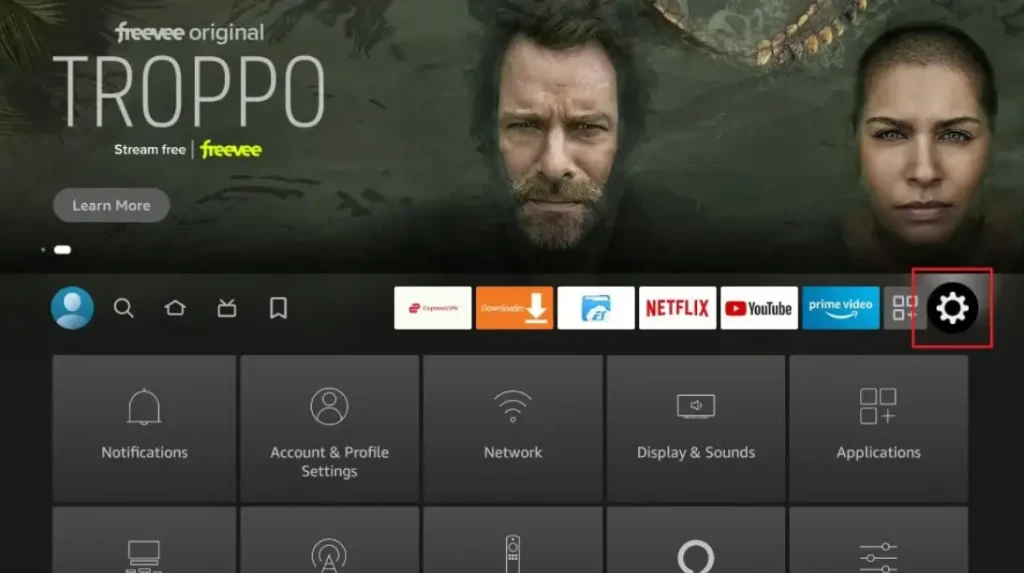
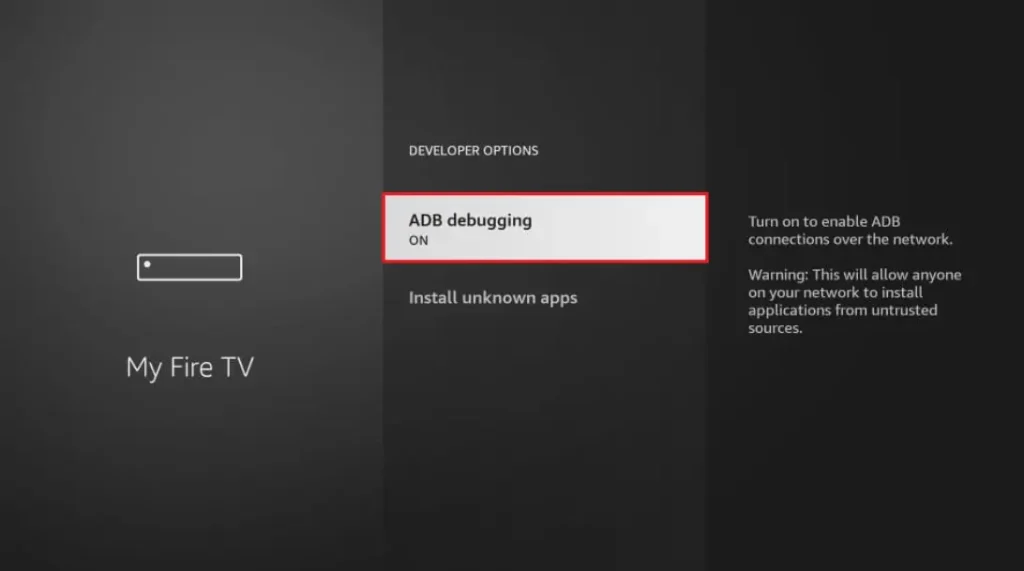
Then Click on Developer Options
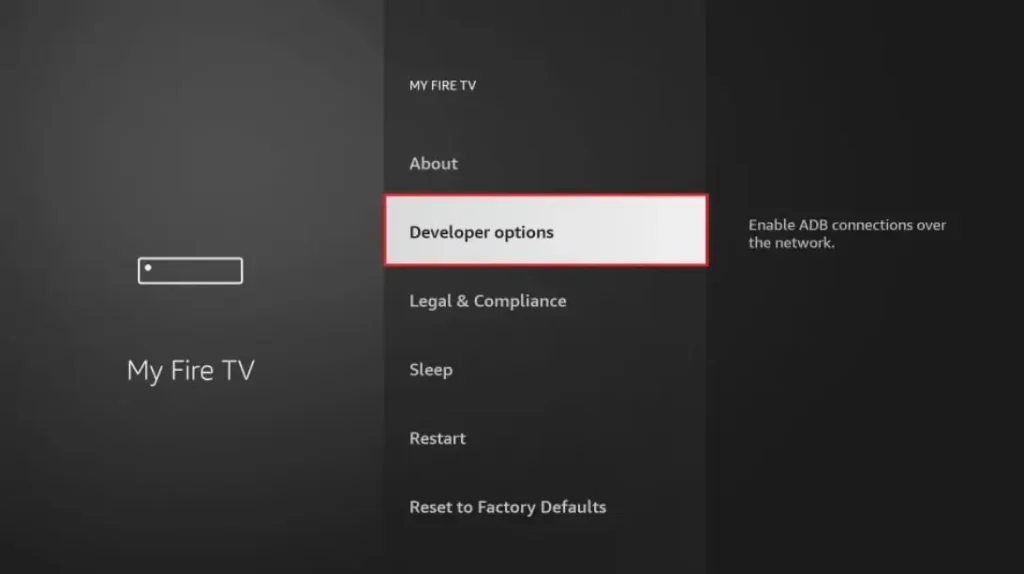
Then Click on install unknown Apps
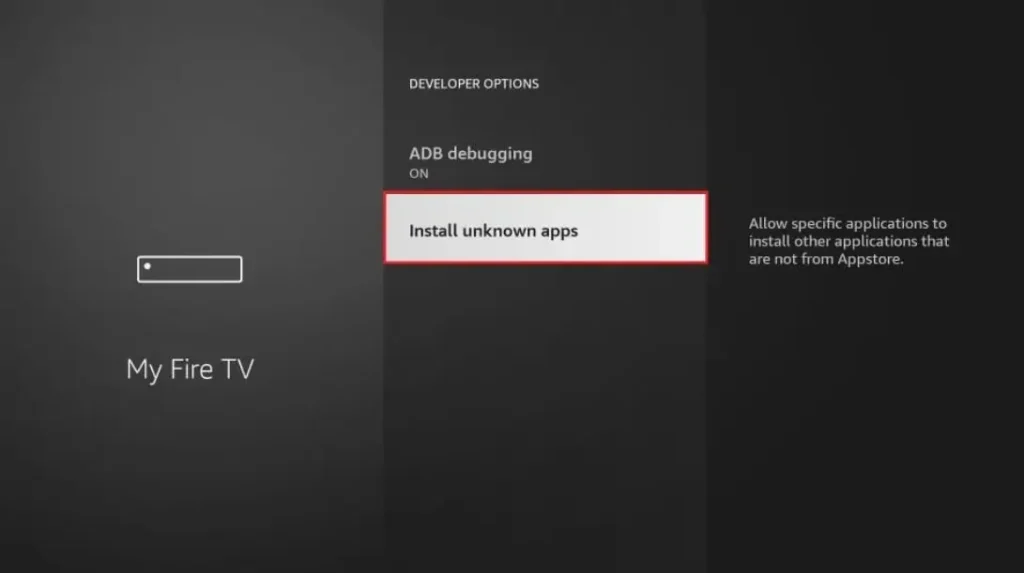
Turn ON “Apps from Unknown Sources”
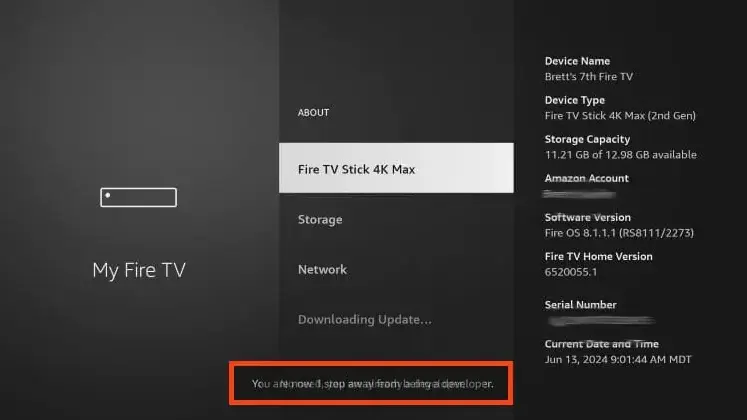
Click your device name 7 times
Is Jailbreaking Google TV Legal in the UK?
Yes, jailbreaking your Google TV device is completely legal in the United Kingdom. You own the device, whether it’s a Chromecast or a TV. You have the right to change its settings to install the software you want. It is a perfectly acceptable thing to do.
However, what you use the device for after jailbreaking must also be legal. Streaming pirated content is against UK law. Pirated content includes new cinema movies, paid sports events, and shows from subscription services like Sky or Netflix that you haven’t paid for.
We encourage responsible use. After jailbreaking, focus on legal streaming apps. Enjoy all the brilliant free-to-air UK content on BBC iPlayer, ITVX, and All 4. Use apps for your personal movie collection. Explore legitimate free services like Freevee or Pluto TV.
Regarding warranty, jailbreaking usually does not void the manufacturer’s warranty as long as system files are untouched. Since you are only changing a setting, if your Chromecast or TV has a hardware failure, the manufacturer should still honour the warranty. They may not support issues caused by a third-party app you installed, but the physical device is still covered.
Benefits of Jailbreaking Google TV
Jailbreaking your Google TV unlocks a host of new possibilities. Here are the key advantages you will enjoy.
Install Third-Party Apps
This is the main benefit. The Google Play Store has thousands of apps, but not all of them. By jailbreaking, you can install apps from other places on the internet. This could be a useful utility, a different media player, or a streaming service from another country.
More Streaming Options
You gain access to a wider world of content. You can easily add apps that provide thousands of free, legal movies and TV shows (with ads). You can also install apps for services that aren’t officially on the Play Store but are still perfectly legal to use.
Customisation
You get to personalise your experience. You can install different “launchers” that change your home screen layout. You can tweak settings that are normally hidden and organise your apps exactly how you like. This makes the device feel truly yours.
Works on All Google TV Devices
The process is virtually identical whether you have a Chromecast with Google TV dongle, a Sony Bravia TV, or a TCL TV with Google TV built-in. The settings menus are in the same place, making this guide useful for everyone.
No Cost
You do not need to buy any software or pay for codes. The entire process uses free settings and free apps. It is a fantastic way to get more value from your device without spending any extra money.
Things to Know Before Jailbreaking Google TV
Before you start, here are a few simple things to check. This will ensure the process is smooth and trouble-free.
Your Google TV device must be connected to the internet. You need a stable Wi-Fi connection to download the necessary apps and files. Make sure your internet is working well.
You need to be signed into a Google account on the device. This is the account you used when you first set up your Chromecast or TV. The process uses the official Play Store, so you must be logged in.
You do not need a PC or laptop. Everything is done directly on your TV screen using your remote control. This makes it very convenient.
Jailbreaking can be undone easily at any time. If you change your mind, you can simply go back into the security settings and turn the “Unknown Sources” permission off. Your device will return to its standard, locked-down state.
A crucial safety rule: only install APK files from trusted sources. APK files are the installation packages for Android apps. Only download them from the official website of the app you want (like kodi.tv) or from major, reputable tech websites you know and trust.
How to Jailbreak Google TV – Step-by-Step Guide
Follow these clear steps. They work for most Google TV devices.
Step 1: Turn On Your Google TV Device
Make sure your Chromecast or Google TV is plugged in and on your home screen. Ensure it has a stable connection to your Wi-Fi network. You can check this in Settings > Network & Internet.
Step 2: Enable Developer Options
This unlocks the necessary settings. Using your remote, go to Settings. Scroll down and select System. Click on About. Find the option that says “Android TV OS build”. Click on this option repeatedly (about 7 times). You will see a message that says “You are now a developer!”.
Step 3: Allow Apps from Unknown Sources
Go back to the main Settings menu. Now, look for a section called Privacy & Restrictions or Security & Restrictions. Inside, find the setting for “Unknown sources” or “Install unknown apps”. You need to enable this permission for the app you will use to install files (like a file manager). Find the app “Downloader” or “File Commander” in the list and turn the switch ON for it.
Step 4: Install a Downloader or File Manager App
Go to the Google Play Store on your device. Search for an app called “Downloader” (by AFTVnews) or “File Commander”. These are free file manager apps. Install one of them. These apps let you browse the internet and download files directly to your Google TV.
Step 5: Download Third-Party Apps (APK Files)
Open the Downloader or File Commander app. You will see an option to enter a web address (URL). Type the official website address for the app you want. For example, to get Kodi, type “kodi.tv/download”. Only use addresses from the app’s official website.
Step 6: Install and Launch the App
The app will download the APK file. Once downloaded, a prompt will ask if you want to install it. Click Install. Wait for the installation to complete, then click Open or Done. To save storage space, you can then delete the downloaded APK file through the file manager app.
Step 7: Confirm Jailbreak Is Successful
Go back to your Google TV home screen. Your new app should appear in your app list. Open it. If it loads and works correctly, you have successfully set up your device to install third-party apps!
Best Apps to Install After Jailbreaking Google TV (UK)
With your Google TV ready, here are some of the best free and legal apps to install. They are perfect for UK viewers.
Kodi (Official Version)
Kodi is a powerful media centre. It is brilliant for organising and playing your own collection of movies, music, and photos stored on a computer or network drive. You can also add legal add-ons for weather, news, and YouTube from its official repository.
Plex
If you have a computer with digital movies, Plex is essential. Install Plex Media Server on your computer and the Plex app on your Google TV. It beautifully organises your personal media library and streams it to your TV.
BBC iPlayer, ITVX & All 4
These are the must-have free TV apps in the UK. They provide all the live channels, catch-up services, and exclusive shows from the main UK broadcasters. They offer thousands of hours of high-quality, legal entertainment.
Freevee
This is Amazon’s free, ad-supported streaming service. It has a great selection of movies, TV series, and original shows. It is completely free and legal, making it a fantastic addition.
YouTube
The official YouTube app gives you access to millions of videos on every topic imaginable, from music and entertainment to tutorials and documentaries.
Risks and Safety Tips
Jailbreaking is safe when done carefully, but you should be aware of small potential risks.
The main risk comes from unsafe APK files. Downloading from unreliable websites can sometimes bring malware. This is harmful software that could slow your device or cause problems.
Sometimes, an app from an unofficial source might not be fully compatible with Google TV. It could crash or not work properly.
Here are simple safety tips to follow:
- Use trusted websites only. Only download APK files from the official website of the app you want.
- Keep Google TV updated. Go to Settings > System > System update to check for updates. Updates fix security issues.
- Avoid “modded” apps. Steer clear of apps that promise free access to paid services. These are illegal and often unsafe.
- Consider a VPN for privacy. A VPN can help protect your online privacy. However, do not use a VPN to try to access geo-blocked paid content illegally.
Google TV Jailbreak FAQs
Is jailbreaking Google TV free?
Yes, it is completely free. You do not pay for any software or tools. You are just changing a setting and using free apps from the Play Store.
Can Google block a jailbroken device?
No, Google cannot and does not block your device for enabling “Unknown Sources.” It is a user-controlled security setting. They may block specific illegal apps from working on the Play Store, but they will not disable your device.
Does jailbreaking slow down Google TV?
Enabling the setting itself does not slow it down. However, if you install many poorly optimised apps or ones that run in the background, they could use memory and make the system feel slower.
Can I undo the jailbreak?
Yes, easily. Go to Settings > Privacy & Restrictions > Unknown sources and turn the permission OFF for the file manager app you used. You can then uninstall any third-party apps you added.
Is Kodi legal on Google TV in the UK?
Yes, the Kodi software is 100% legal. It is a media player, like VLC. It becomes illegal only if you add third-party add-ons that provide access to stolen movies or live TV streams. Always use add-ons from Kodi’s official repository.
Conclusion
Jailbreaking your Google TV is a legal, free, and straightforward process. It unlocks more apps and allows for great customisation of your device.
By following the simple steps to enable “Unknown Sources,” you can safely explore a wider world of legal streaming. You can tailor your device to your preferences without any cost.
We encourage responsible and legal streaming. Use your newly flexible Google TV to enjoy the vast amount of fantastic official and free UK content available. Have fun personalising your viewing experience
Is Jailbreaking a Firestick Legal in the UK?
Many people in the UK ask whether jailbreaking a Firestick is legal or not. The short answer is: jailbreaking a Firestick itself is legal in the UK, but how you use it matters a lot.
When you jailbreak Firestick, you are only changing the device settings to allow third-party apps. This process does not break UK law on its own. Amazon Firestick devices are owned by the user, so changing settings for personal use is allowed.
However, problems start when a jailbroken device is used to watch paid TV channels, Sky content, movies, or sports for free without permission. This is illegal in the UK and goes against copyright laws. The law focuses more on what you watch, not just the jailbreaking step.
If you want a safe and detailed explanation, visit this guide on jailbreak firestick to understand what is allowed and what is risky. Many UK users jailbreak Firestick to install legal apps like Kodi for free content.
To stay on the safe side, always use legal apps and services after jailbreak firestick. For updated UK rules and beginner tips, this jailbreak firestick guide is a helpful resource.
Related Post:
- Unlock Endless Entertainment: A Complete Guide to Jailbreaking Sky Glass on Your Firestick in the UK
- Unlock Your Firestick: The Truth About Sky Glass Jailbreak APKs for UK Viewers
- Jailbreak Sky Glass on Firestick: The Ultimate UK Guide to Unlocking Your TV in 2025
- Sky Glass Jailbreak Firestick APK Latest Version: A UK User’s 2025 Guide to Safe & Informed Streaming
- Jailbreak Sky Glass on Firestick Free Download: The Ultimate 2024 Guide for UK Streamers