

With over a decade of experience in streaming technology, IPTV apps, and Amazon Fire TV devices, James specializes in Firestick jailbreaking, app installation, and cord-cutting solutions for users in the UK.
 Add as a preferred source on Google
How to Get Sky Glass Playlist on Firestick (Free & Jailbreak Methods)
Sky Glass is a premium UK-based streaming service offering live TV, sports, movies, and exclusive Sky channels. While a paid subscription is required for official access, many users look for ways to watch Sky Glass on Firestick for free using jailbreak methods. Below, we explore safe (and legal) alternatives to enjoy Sky Glass content without a subscription.
Get Free Sky Glass
Must-Do Steps Before You Jailbreak Firestick
Before you Jailbreak Firestick, complete these 3 safety checks:
- Enable Unknown Sources
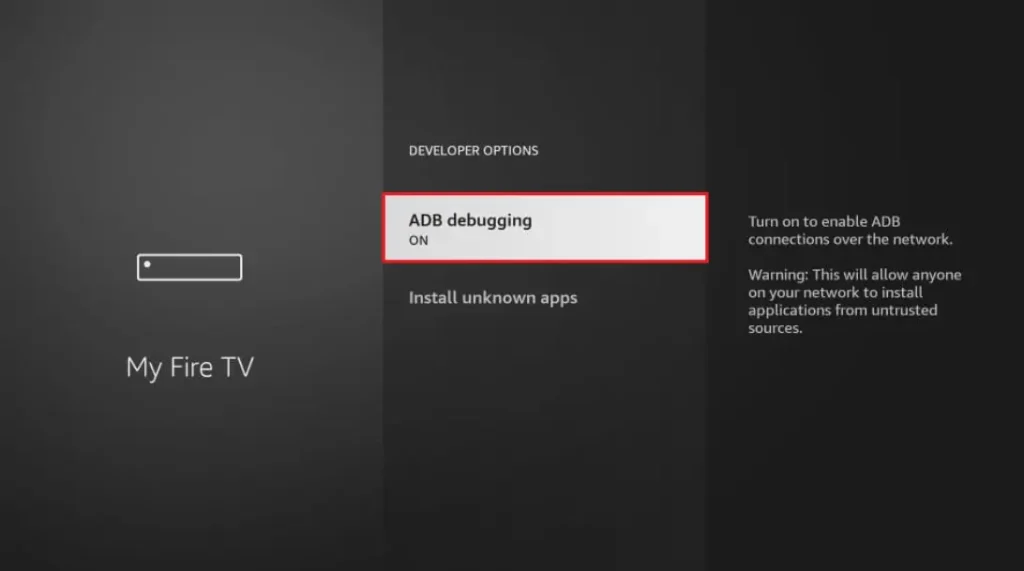
- Go to: Settings > My Fire TV > Developer Options
- Turn ON “Apps from Unknown Sources”
Go into Settings Option
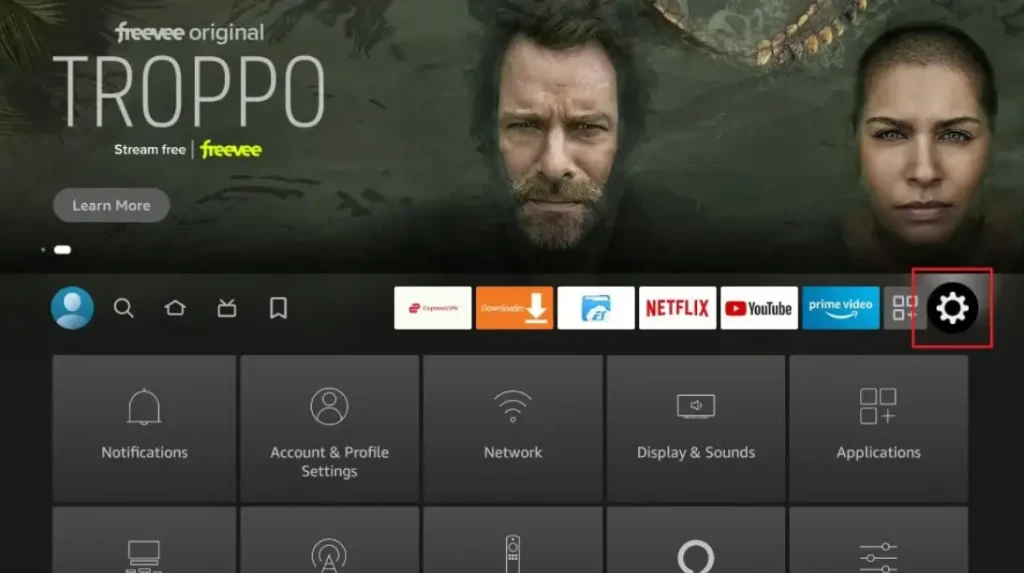
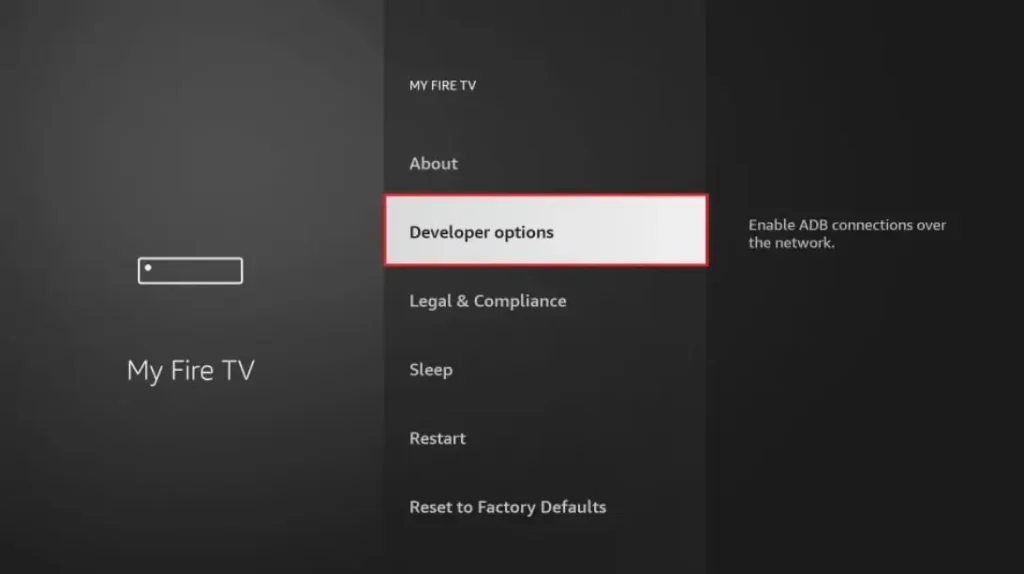
Then Click on Developer Options
Then Click on install unknown Apps
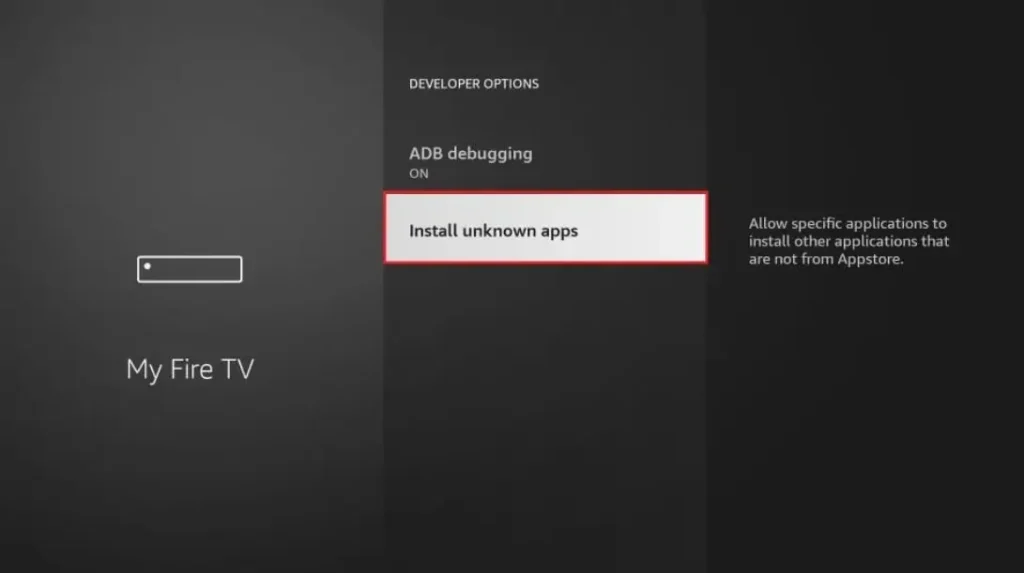
Turn ON “Apps from Unknown Sources”
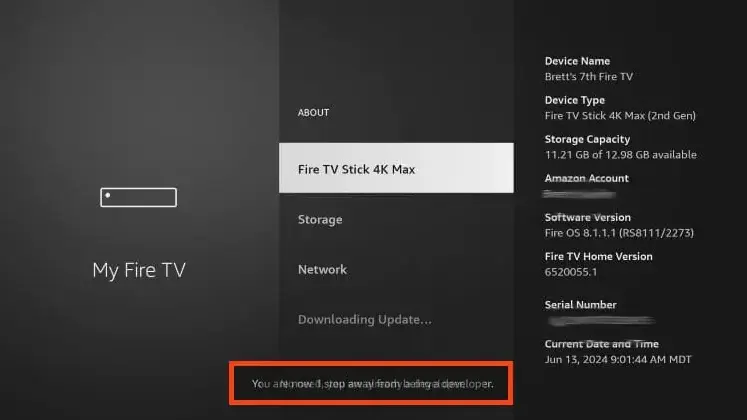
Click your device name 7 times
Step 1: Install Downloader App from Amazon Store
First, you need the Downloader app to jailbreak Firestick. This app lets you download the jailbreak tools. Here’s how to get it:
- Turn on your Firestick and go to the home screen
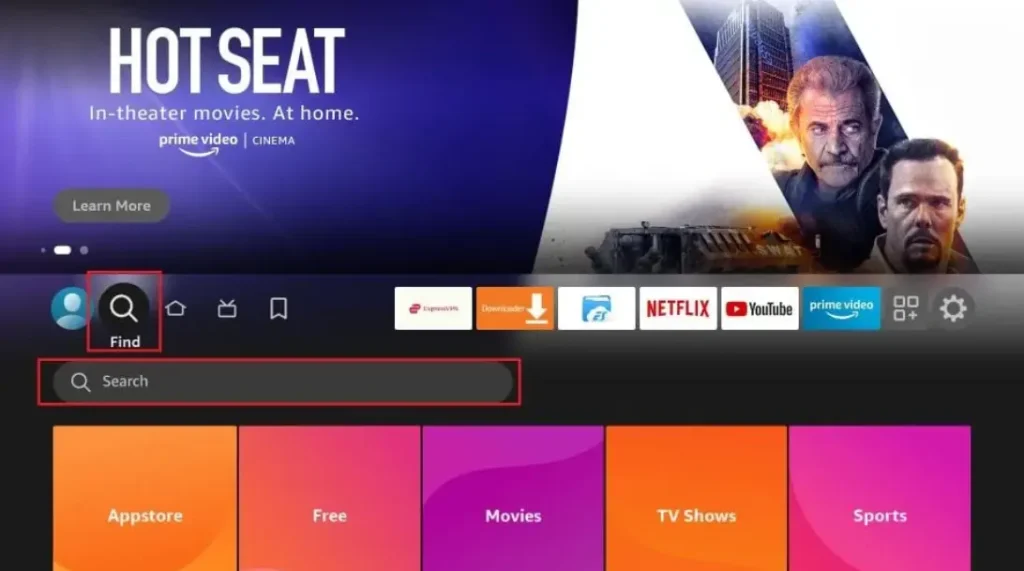
- Click the search icon (magnifying glass) at the top
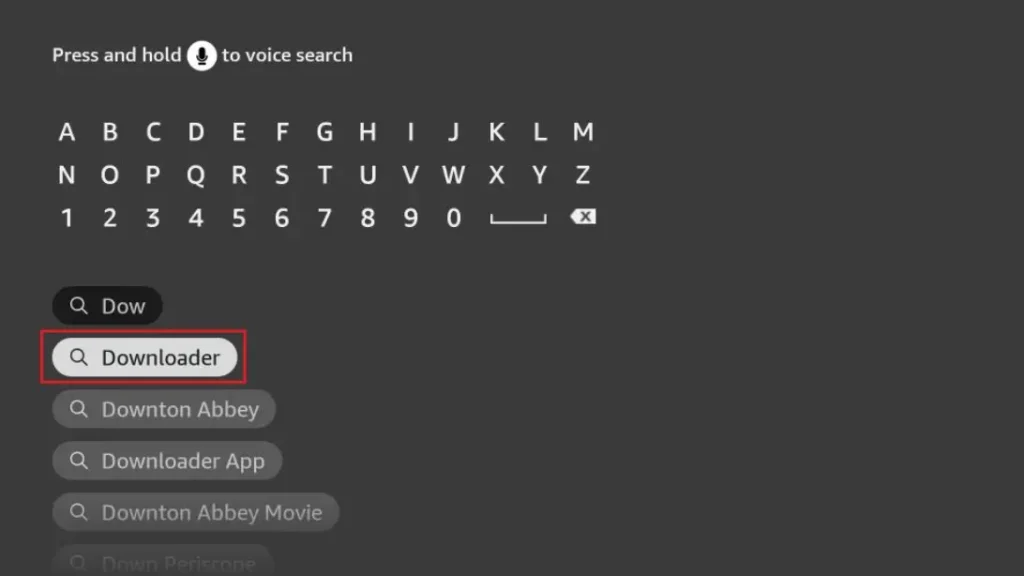
- Type “Downloader” and select the orange app icon
- Click “Download” and wait for installation
- Open the app when it’s ready
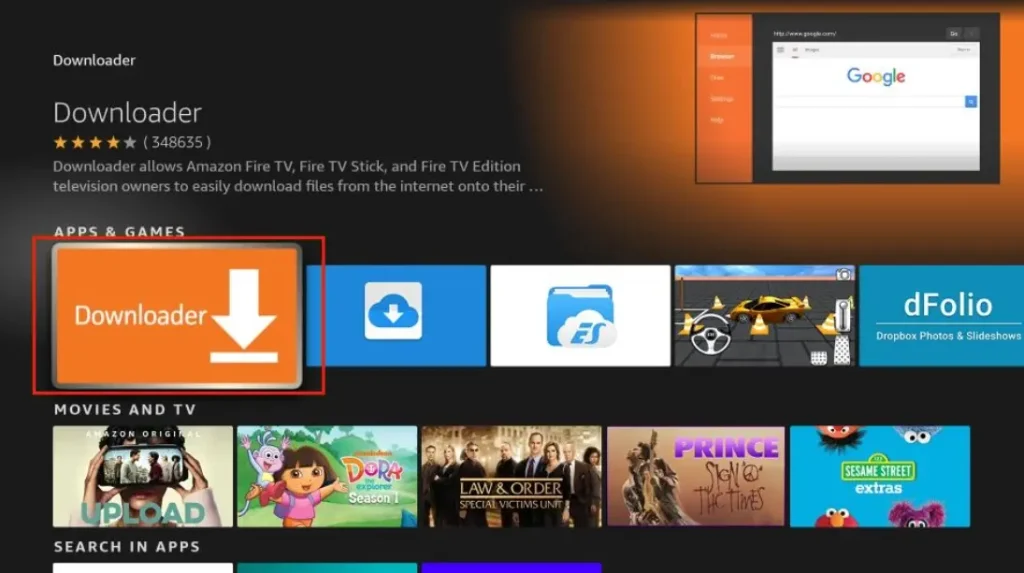
The Downloader app is free and safe. It’s the first tool you need to jailbreak Firestick. Without it, you can’t get the other apps that make jailbreaking work.
Step 2: Enter URL to Download Jailbreak Tool
Now that you have Downloader, you can get the jailbreak tools:
- Open Downloader app
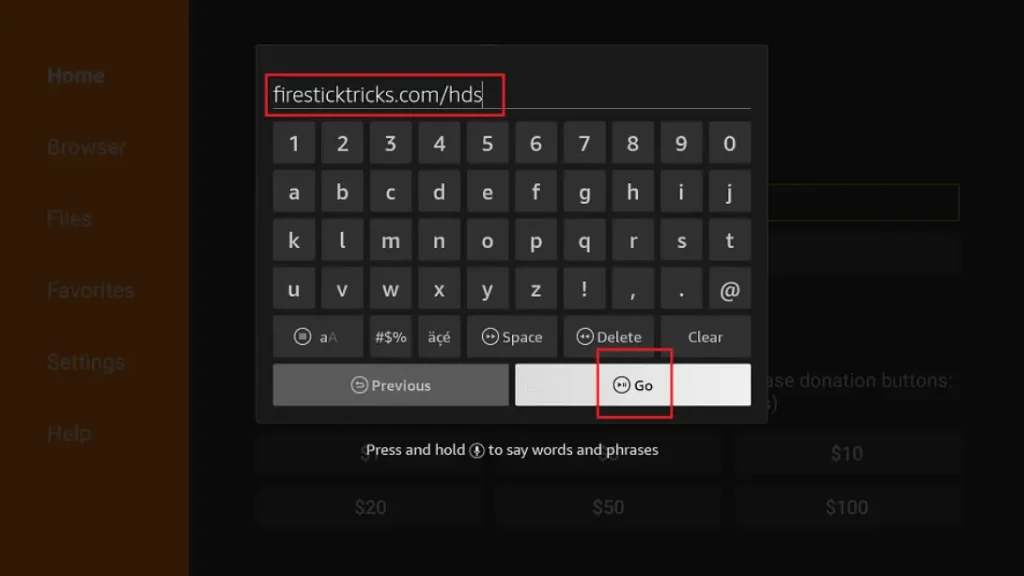
- In the URL box, type: troypoint.com/fire (this is safe)
- Click “Go” and wait for the page to load
- Follow the on-screen instructions to download
- The installer will appear – click “Install”
On a Firestick, “jailbreak” is a bit of a scary word for a simple idea. It doesn’t mean hacking. It doesn’t mean breaking your device. It just means changing one setting. This setting allows you to install apps from places other than the main Amazon Appstore. Think of it like allowing your device to accept packages from another delivery company.
It’s important to know the difference between jailbreaking, unlocking, and sideloading. People use these words like they mean the same thing. “Jailbreaking” is the common word people use. “Unlocking” sounds like you need a secret code, but you don’t. “Sideloading” is the technical term. It means loading an app onto your device from the “side,” not from the main store.
Why doesn’t Amazon offer these apps officially? Sometimes, it’s because the app maker didn’t put it in Amazon’s store. Other times, an app might do things Amazon doesn’t want to support directly. By letting you change the setting yourself, Amazon gives you the choice while making sure you know there could be risks.
Is It Legal to Jailbreak a Firestick in the USA?
In the United States, you have the right to modify the devices you own. This means jailbreaking your own Firestick is perfectly legal. You are just changing a setting on your property. It’s like adding new software to your laptop. The law protects your ability to do this.
The action only becomes illegal if you use it for stealing. Streaming copyrighted movies, TV shows, or pay-per-view sports without paying is piracy. Piracy is against the law. The jailbreak itself isn’t the problem; it’s what you choose to watch.
Following safe streaming guidelines keeps everything above board. Only install apps from their official websites. Only watch content that is free and legal or that you have a paid subscription for. This way, you explore new apps with a clear conscience and stay on the right side of the law.
Easiest Way to Jailbreak Firestick — Complete Step-by-Step Guide (Main Keyword)
Step 1: Prepare Your Firestick Settings
First, turn on your Firestick and go to the main home screen. From the top menu, select Settings. Inside Settings, find and click on My Fire TV (on older models) or Device & Software (on newer ones). Now, click on Developer Options.
If you don’t see Developer Options, you need to turn it on. Go to About first. Click on the name of your device, like “Fire TV Stick,” seven times very quickly. A message will pop up saying “You are now a developer.” Go back and enter Developer Options. Here, turn on ADB Debugging. Most importantly, turn on Apps from Unknown Sources. Click “Turn On” when the warning appears. Your device is now ready for the next step.
Step 2: Install the Downloader App (Required Tool)
The Downloader app is the magic tool that makes this easy. You don’t need a computer or special cables. Go back to your Firestick home screen. Click on the search icon (the magnifying glass). Type “Downloader” and select the app from the list. It has a bright orange icon with a white down arrow.
Click Download or Get. The Amazon Appstore will install it for you. Once installed, open the Downloader app. It will ask for permission to access your files. Click Allow. This app acts like a tiny web browser for your Firestick. You will use it to download other apps directly from the internet. This is why it’s the easiest method—it’s one simple app that does everything you need.
Step 3: Use Downloader to Install Third-Party Apps
Now for the fun part: getting new apps. Open the Downloader app. You’ll see a blank box at the top that says “Enter a URL.” This is where you type the website address for an app you want. For example, to get the legal Kodi media player, you would type kodi.tv/download and click “Go.”
Downloader will fetch the file. When it’s done, it asks if you want to install it. Click Install. Wait for it to finish, then click Done. You can delete the downloaded file to save space. You can repeat this to install other apps people enjoy, like certain media players or free, legal streaming apps. This process is called “sideloading.”
Step 4: Complete Setup
After installing your apps, you might need to allow permissions when you open them for the first time. It’s usually safe to click “Allow” if you trust the app. Next, customize your new apps. Organize them on your home screen so they’re easy to find.
Finally, clean your Firestick storage. Go to Settings > Applications > Manage Installed Applications. Open the Downloader app from this list and select Clear Cache. This removes temporary files and keeps your device running fast. You have now successfully jailbroken your Firestick the easy way!
Alternative Easy Ways to Jailbreak a Firestick (LSI Keywords)
Some people use other apps besides Downloader. One old method used ES File Explorer. This is a file manager app. You can use it to download APK files from a web browser inside the app. However, this app has become cluttered with ads, making it less user-friendly for beginners.
Another popular method uses apps like FileLinked, Applinked, or Unlinked. These apps don’t host files themselves. Instead, you enter a special code provided by a “store.” This code gives you a list of apps to install with one click. It can be very quick.
The pros of these methods are speed and convenience. You can install many apps at once. The cons are risk and trust. You must absolutely trust the person who created the code list. If they added a bad app, you could install malware without knowing. For total safety and control, using Downloader to get apps directly from their official websites is still the best and easiest recommendation.
Why This Is the Easiest Method for Beginners
This guide is the easiest because it requires no tech skills at all. You don’t need to connect your Firestick to a computer. You don’t need to type confusing commands. The entire process happens on your TV screen with your remote.
There are only three main steps: change a setting, install Downloader, and use it to get apps. It’s safe because you control every app you install. It’s quick—you can do it in less than ten minutes.
This exact method works on every single Firestick model. Whether you have a Firestick 4K, a Firestick 4K Max, a Fire TV Stick Lite, or a powerful Fire TV Cube, the steps are identical. You don’t need to look for a different guide for your specific device. One easy method works for them all.
What You Can Do After Jailbreaking (LSI Keywords)
After jailbreaking, you open up new possibilities. The main thing is installing streaming apps that aren’t on Amazon’s list. This could be a niche app for a specific type of content or an older version of a popular app.
Some users install IPTV apps to watch live television over the internet. You should only use these with a legitimate, paid IPTV service. You can also add custom builds or skins for apps like Kodi, which change how they look and feel.
You gain access to many free content sources. We are only talking about legal options here! This includes apps for public domain movies, free news channels, and independent films. Your Firestick changes from a simple streamer into a more powerful, personalized media center.
Risks of Jailbreaking & How to Stay Safe
Like any tool, jailbreaking has risks if used carelessly. The biggest risk is malware from fake APK files. A “fake APK” is a harmful file disguised as a real app. It can steal your data or damage your device.
There are also warranty concerns. While changing the setting doesn’t void your warranty, damaging your device with bad software might not be covered. Amazon’s warranty is for hardware problems, not software issues you cause.
Staying safe is straightforward. Follow safe installation tips: only download APKs from the app’s official website. Avoid “cracked” or “free premium” app websites. You can also use security tools from the Amazon Appstore, like a reputable antivirus scan for Android TV. These tools can provide an extra layer of protection as you explore.
Should You Jailbreak Your Firestick? Final Thoughts
So, who should hit that “Allow Unknown Sources” button? You should jailbreak if you’re curious and want more control. It’s great for people who feel limited by the official app store and want to try new, legal streaming apps. Cord-cutters who build their own entertainment system will love it.
Who should avoid it? If you only use Netflix, Hulu, and Disney+ and are perfectly happy, you don’t need to. If the idea of checking an app’s official website sounds complicated, it might not be for you. Families should be cautious, as some sideloaded apps don’t have the same parental controls as official ones.
Here is a summary: The benefits are more apps and more customization. The risks involve bad software if you’re not careful. For USA readers, the final recommendation is clear. If you follow this easy, safe guide and promise to only use legal apps, jailbreaking can be a fun and rewarding upgrade to your streaming life.
This tool helps you jailbreak Fire Firestick? Learn how to safely jailbreak your Firestick in 2024 with our step-by-step guide. Unlock unlimited streaming & apps! ✅
Frequently Asked Questions (FAQ) – Jailbreaking a Firestick
What does “jailbreaking a Firestick” mean?
Jailbreaking a Firestick refers to the process of modifying the device to install third-party apps, streaming services, or custom software that are not available on the official Amazon App Store. This allows users to access free movies, TV shows, live TV, and other content not typically available through standard Amazon services.
Is jailbreaking a Firestick legal?
Jailbreaking itself is not illegal, but using it to access copyrighted content without proper authorization (such as pirated movies or TV shows) is against the law in many countries. Always ensure you are using legal streaming services and apps.
Will jailbreaking void my Firestick warranty?
Yes, modifying your Firestick by jailbreaking it can void Amazon’s warranty. If your device malfunctions, Amazon may refuse to repair or replace it.
Do I need a VPN for a jailbroken Firestick?
A VPN (Virtual Private Network) is highly recommended when using a jailbroken Firestick to:
Protect your privacy
Bypass geo-restrictions
Avoid ISP throttling
Stay secure when using third-party apps
What are the best apps to install on a jailbroken Firestick?
Some popular apps include:
Kodi (with add-ons like The Crew, Seren, or Exodus)
Cinema HD
Stremio
TiviMate (for IPTV)
SmartTube Next (ad-free YouTube)
Can Amazon block or brick my Firestick if I jailbreak it?
Amazon can disable certain features or push updates that break jailbroken apps, but they typically do not “brick” (completely disable) the device. However, using unauthorized software may lead to account restrictions.
How do I jailbreak my Firestick?
Jailbreaking a Firestick usually involves enabling “Unknown Sources” and sideloading apps via Downloader or ADB. Here’s a basic guide:
Go to Settings > My Fire TV > Developer Options.
Enable “Apps from Unknown Sources” and “ADB Debugging.”
Install Downloader from the Amazon App Store.
Use Downloader to install third-party apps (e.g., Kodi, APK files).
Is jailbreaking the same as rooting?
No. Jailbreaking allows sideloading apps, while rooting gives full system control (like on Android phones). Rooting a Firestick is more complex and risky.
Can I revert my Firestick to its original state?
Yes, you can:
Uninstall unauthorized apps
Reset to factory settings (Settings > My Fire TV > Reset to Factory Defaults)
What are the risks of jailbreaking a Firestick?
Security risks (malware, hacking)
Legal issues (if used for piracy)
Device instability (some apps may crash or slow down the Firestick)
Do I need a jailbroken Firestick to watch free content?
Not necessarily. Many legal free streaming apps (like Pluto TV, Tubi, Crackle) are available without jailbreaking. Jailbreaking is mainly for accessing unofficial sources.
Will jailbreaking make my Firestick faster?
No, it may slow it down if too many apps are installed. Clearing cache and optimizing storage can help maintain performance.
Credit Website: www.gov.uk