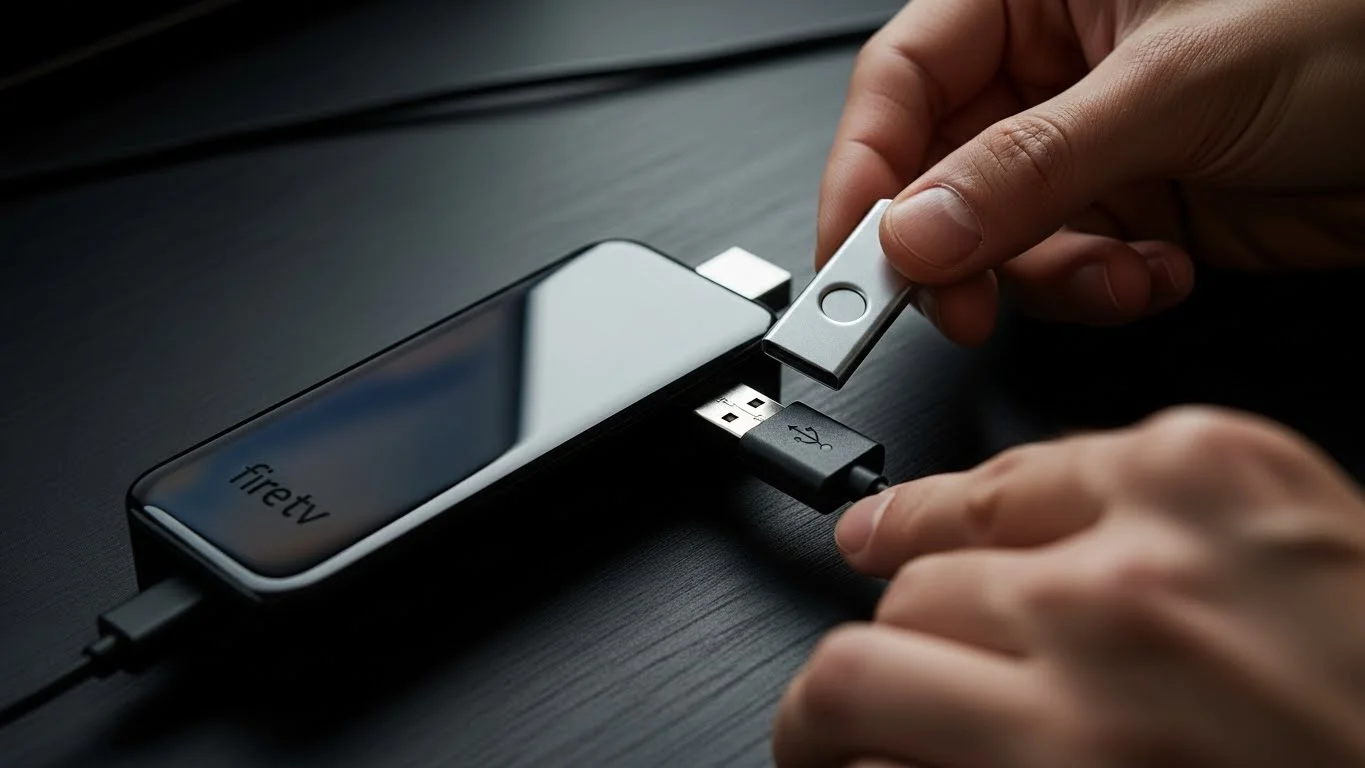
Understanding What “Jailbreaking” a Fire TV Stick Really Means
Many people use the word “jailbreak” when they talk about Fire TV Sticks. They think it means hacking the device to get everything for free. This is not the true meaning. A jailbreak usually means removing software restrictions built into a device by the manufacturer. For a Fire TV Stick, this is not something most people do or need to do.

With over a decade of experience in streaming technology, IPTV apps, and Amazon Fire TV devices, James specializes in Firestick jailbreaking, app installation, and cord-cutting solutions for users in the UK.
 Add as a preferred source on Google
Fire tv stick Lifetime Subscription
Ready to unlock the true potential of your fire tv stick without the risk and constant maintenance?
Get Fire tv stick LifeTime
The term “jailbreak” is often used incorrectly. What people usually want is to install apps from outside the official Amazon Appstore. This process has a different name. It is called “sideloading.” Sideloading is simply installing an application file directly onto your Fire Stick, rather than getting it from the Amazon store. This process is legal, but you must be very careful about where you get the apps. Understanding this difference is the first step to using your Fire TV Stick safely and effectively.
Must-Do Steps Before You Jailbreak Firestick
Before you Jailbreak Firestick, complete these 3 safety checks:
- Enable Unknown Sources
- Go to: Settings > My Fire TV > Developer Options
- Turn ON “Apps from Unknown Sources”
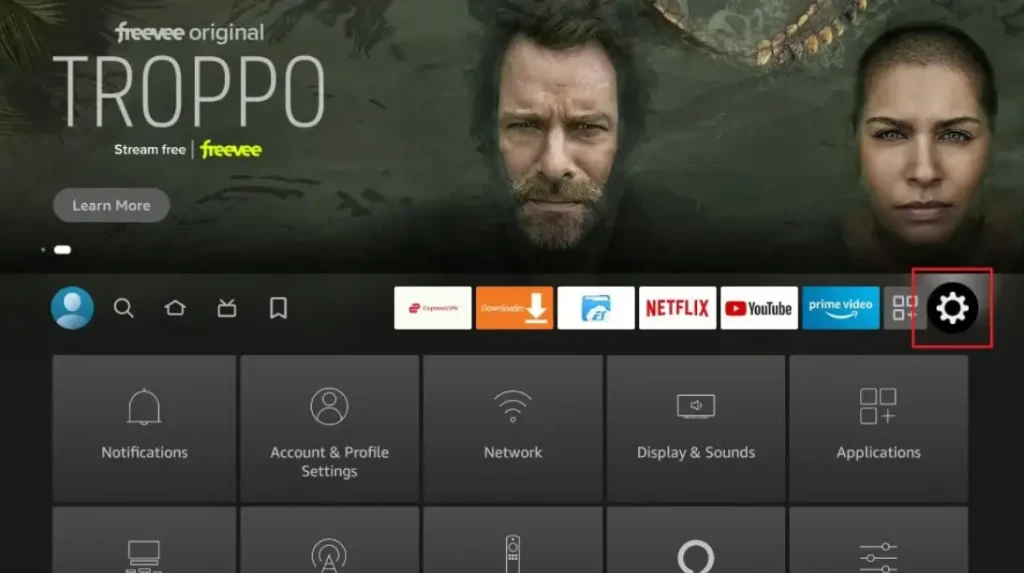
Go into Settings Option
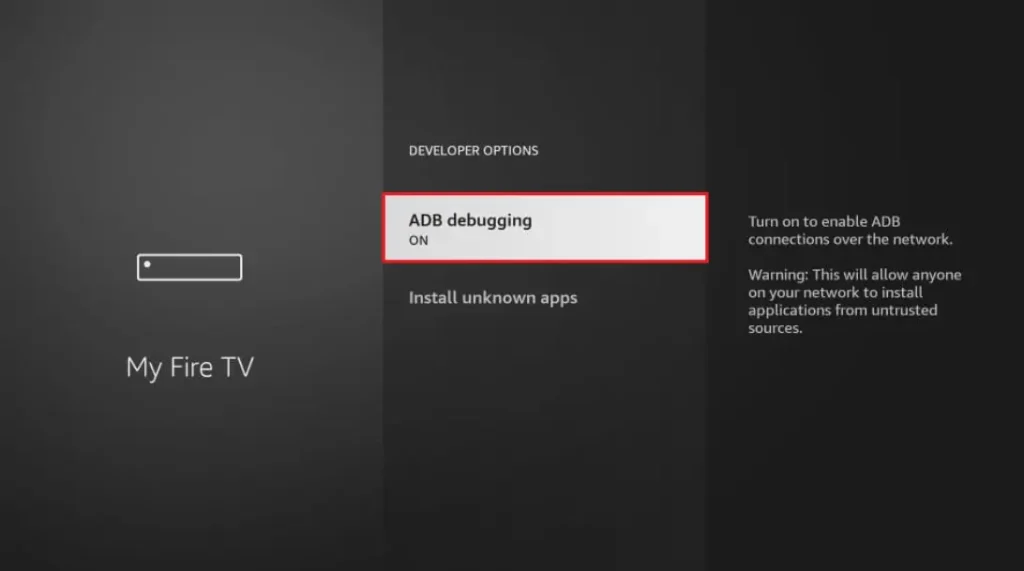
Then Click on Developer Options
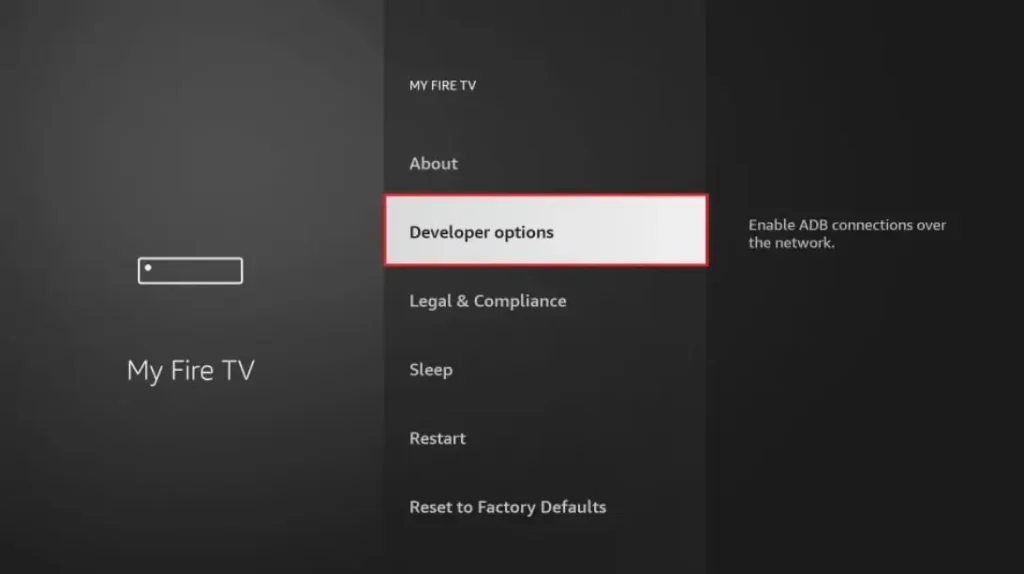
Then Click on install unknown Apps
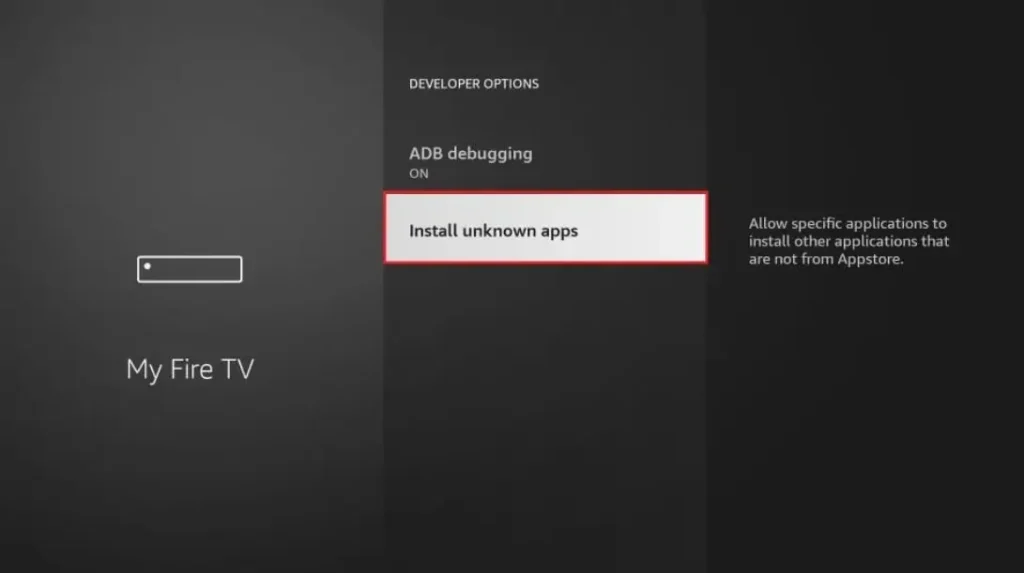
Turn ON “Apps from Unknown Sources”
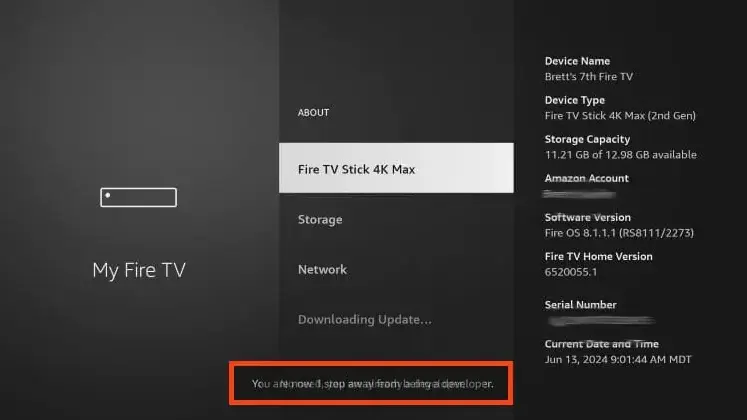
Click your device name 7 times
Step 1: Install Downloader App from Amazon Store
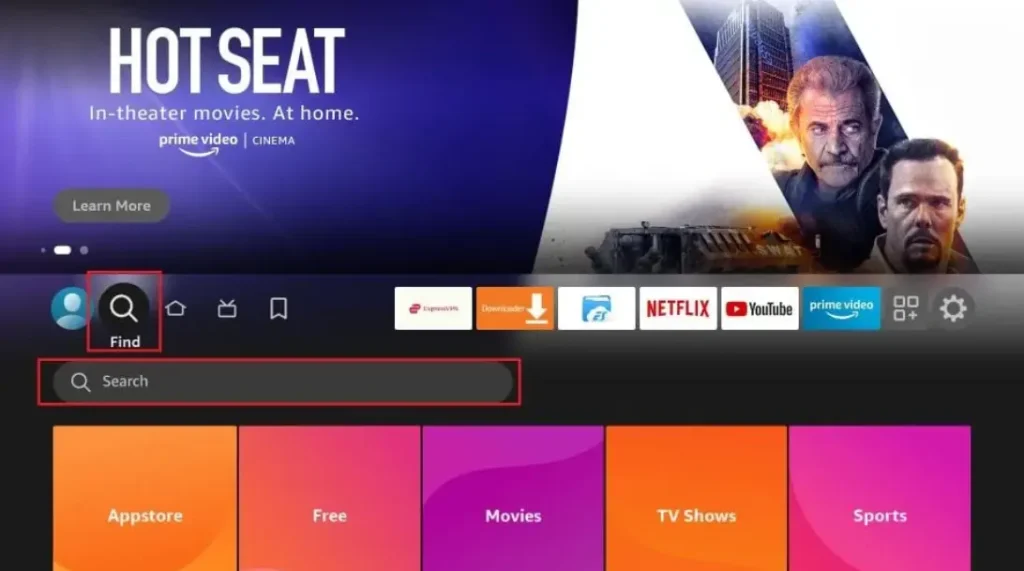
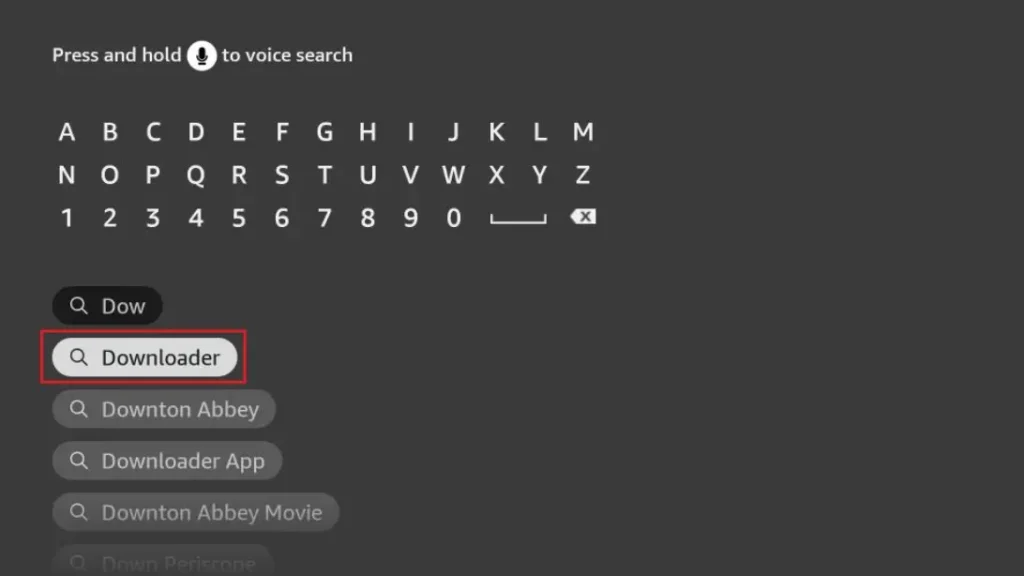
First, you need the Downloader app to jailbreak Firestick. This app lets you download the jailbreak tools. Here’s how to get it:
- Turn on your Firestick and go to the home screen
- Click the search icon (magnifying glass) at the top
- Type “Downloader” and select the orange app icon
- Click “Download” and wait for installation
- Open the app when it’s ready
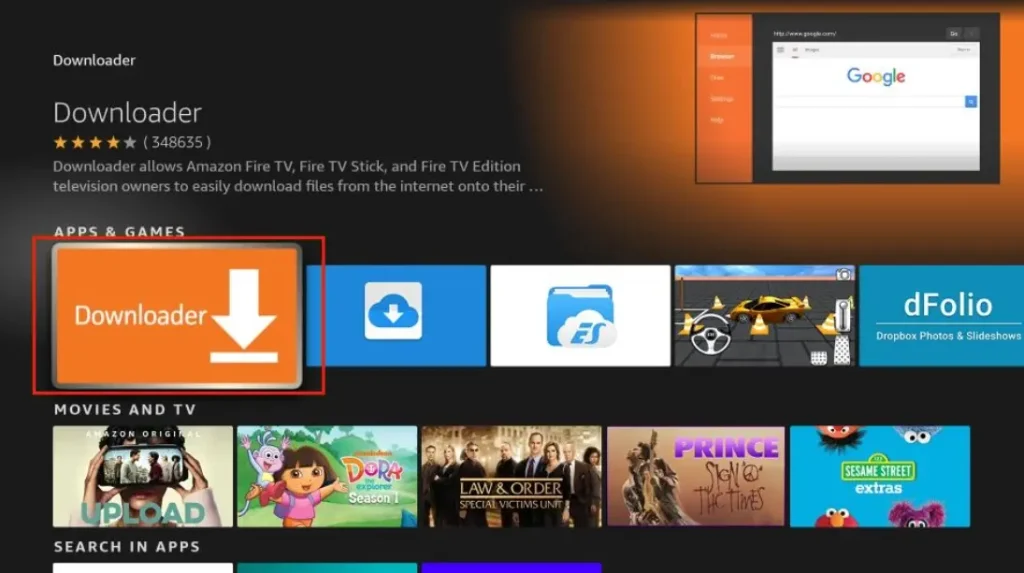
The Downloader app is free and safe. It’s the first tool you need to jailbreak Firestick. Without it, you can’t get the other apps that make jailbreaking work.
Step 2: Enter URL to Download Jailbreak Tool
Now that you have Downloader, you can get the jailbreak tools:
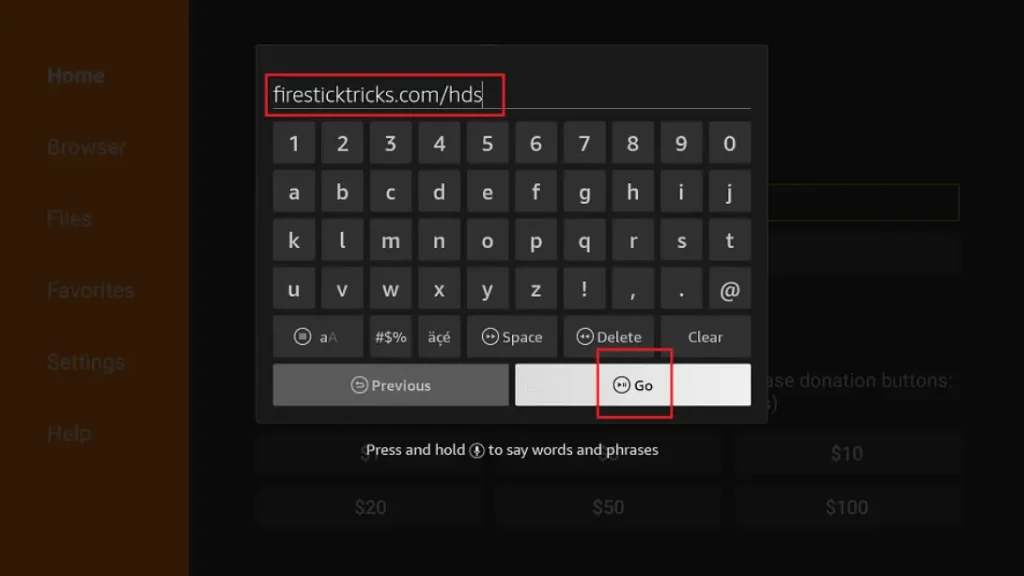
- Open Downloader app
- In the URL box, type: troypoint.com/fire (this is safe)
- Click “Go” and wait for the page to load
- Follow the on-screen instructions to download
- The installer will appear – click “Install”
The Difference Between Sideloading and Jailbreaking
It is important to know the difference between these two words. Sideloading is like adding a new book to a library by bringing it from home. The library rules allow you to add your own books. Jailbreaking is like breaking the library’s rules so you can take books without checking them out.
Sideloading on a Fire Stick is a setting you can turn on. It allows you to install apps that Amazon has not reviewed. Jailbreaking would involve breaking the Fire Stick’s operating system itself. This is very difficult, can break your device, and is not necessary for what most users want to do. When tutorials online say “jailbreak,” they almost always mean “sideload.”
Why People Want to Modify Their Fire TV Stick
People look for ways to change their Fire TV Stick for a few main reasons. They want to access more free movies and TV shows. They may want to use apps that are not available in the Amazon Appstore in their country. Some users want to change the look of the home screen with different launchers.
The goal is often to get more content without paying for more subscriptions. It can feel exciting to unlock new features on a device you own. However, it is crucial to understand the risks that come with these changes. Getting more content should not come at the cost of your device’s security or breaking the law.
How to Safely Enable Apps from Unknown Sources
The only safe “modification” for most users is enabling sideloading. This allows you to install apps from outside the official store. The process is simple and does not damage your device. You are just changing a single setting to give yourself more choices. This is the first step many online guides talk about.
To do this, you need to go into your Fire Stick’s settings menu. You will use your remote to navigate to the correct option. It is important to remember that turning this setting on is safe, but the apps you install afterward might not be. This step just opens the door. You are still responsible for what you invite inside.
A Step-by-Step Guide to Enabling Developer Options
First, you need to unlock the Developer Options menu on your Fire Stick. Go to the main home screen. Select “Settings” all the way on the right. Inside Settings, scroll to the right and select “My Fire TV.” If you have an older device, this might be called “Device” or “System.”
Click on “About.” Now, scroll down to “Fire TV Stick” and click on it. Use your remote to click on the name multiple times, about seven times. You will see a countdown message. After the seventh click, a message will pop up saying, “You are now a developer!” This does not change anything yet. It just adds a new menu for you to use.
Turning On Apps from Unknown Sources
Now that you are a developer, you can enable sideloading. Go back to the “My Fire TV” menu. You will see a new option called “Developer Options.” Click on it. Inside this menu, you will find the setting called “Apps from Unknown Sources.”
This setting is turned off by default for your safety. Click on it to turn it on. A warning message will appear from Amazon. It explains that Amazon is not responsible for apps you install from other sources. Read this warning carefully. If you understand the risks, click “Turn On.” You have now successfully enabled sideloading on your device.
The Risks and Consequences of Unofficial Modifications
Changing your Fire TV Stick comes with real risks. The biggest danger is security. Apps from the Amazon Appstore are checked for viruses and malware. Apps you sideload from the internet do not have this protection. A bad app can steal your personal information. It could slow down your device or even break it.
Another risk is that your device could be banned. Amazon does not want its devices used for illegal activities. If you use your Fire Stick to break the law, Amazon could disable your device and your account. You could also lose access to the movies and shows you legally paid for on Amazon. The risk is not worth the reward for most people.
Security Threats from Malware and Viruses
Malware is software designed to harm your device. Viruses can copy themselves and spread. When you sideload an app, you are trusting the website you downloaded it from. Many websites that offer “free” apps are filled with hidden malware.
This malware can do many bad things. It can track what you type, including your passwords. It can use your device to send spam emails. It can lock your files and demand money to unlock them. Protecting your personal data is much more important than getting a free app. Always think about security first.
How Modifications Can Void Your Warranty
Your Fire TV Stick comes with a warranty from Amazon. This warranty promises that Amazon will fix or replace your device if it stops working. If you physically break your device or modify its software in a way Amazon does not allow, you can void the warranty.
This means if your Fire Stick breaks after you sideload a dangerous app, Amazon may refuse to help you. You would have to buy a new one. Following the official rules helps keep your device safe and keeps your warranty active. It is the best way to protect your purchase.
Legal and Safe Alternatives for More Content
You do not need to jailbreak your Fire TV Stick to get great content. There are many legal and safe ways to watch free movies and TV shows. The official app stores for Fire TV have hundreds of free apps. These apps are supported by ads, so you can watch without paying.
You can also use the free trials offered by many streaming services. This lets you watch premium content for a short time without any risk to your device. Exploring these official options is the smartest and safest way to enjoy your Fire TV Stick. You get peace of mind and a reliable viewing experience.
Exploring Free and Legal Streaming Apps
Your Fire Stick has access to many fantastic free apps. In the UK, you must download BBC iPlayer, ITVX, All 4, and My5. These apps offer live TV and a huge library of on-demand shows for free. In the USA, apps like Pluto TV, Tubi, and The Roku Channel are excellent. They offer thousands of movies and TV shows on demand.
These apps are completely legal and safe. They are supported by advertisements, which is how they can be free. You can find all of them in the Amazon Appstore. By using these, you can build a powerful entertainment system without breaking any rules or risking your security.
Using a VPN to Access Geo-Restricted Content
Sometimes, an app or show is available in one country but not another. This is called geo-restriction. A safe and legal way to handle this is by using a VPN. A VPN is a service that lets you choose an internet server in a different country.
For example, if you are in the USA and want to watch BBC iPlayer, a VPN can make it look like you are in the UK. It is important to use a reputable VPN service and to always follow the terms of service for the apps you use. A VPN is a tool for privacy and access, not for breaking the law.
Disclaimer: This article is for informational purposes only. It explains the common misuse of the term “jailbreak” and outlines the safe process of sideloading. Modifying your device against the manufacturer’s terms may void your warranty and violate laws. Sideloading apps from unverified sources can pose significant security risks. The viewing of copyrighted content through unauthorized apps is illegal. Always use official apps and services and comply with the laws in your region, such as those in the USA and UK.
Related Post:
- Unlock Endless Entertainment: A Complete Guide to Jailbreaking Sky Glass on Your Firestick in the UK
- Unlock Your Firestick: The Truth About Sky Glass Jailbreak APKs for UK Viewers
- Jailbreak Sky Glass on Firestick: The Ultimate UK Guide to Unlocking Your TV in 2025
- Sky Glass Jailbreak Firestick APK Latest Version: A UK User’s 2025 Guide to Safe & Informed Streaming
- Jailbreak Sky Glass on Firestick Free Download: The Ultimate 2024 Guide for UK Streamers