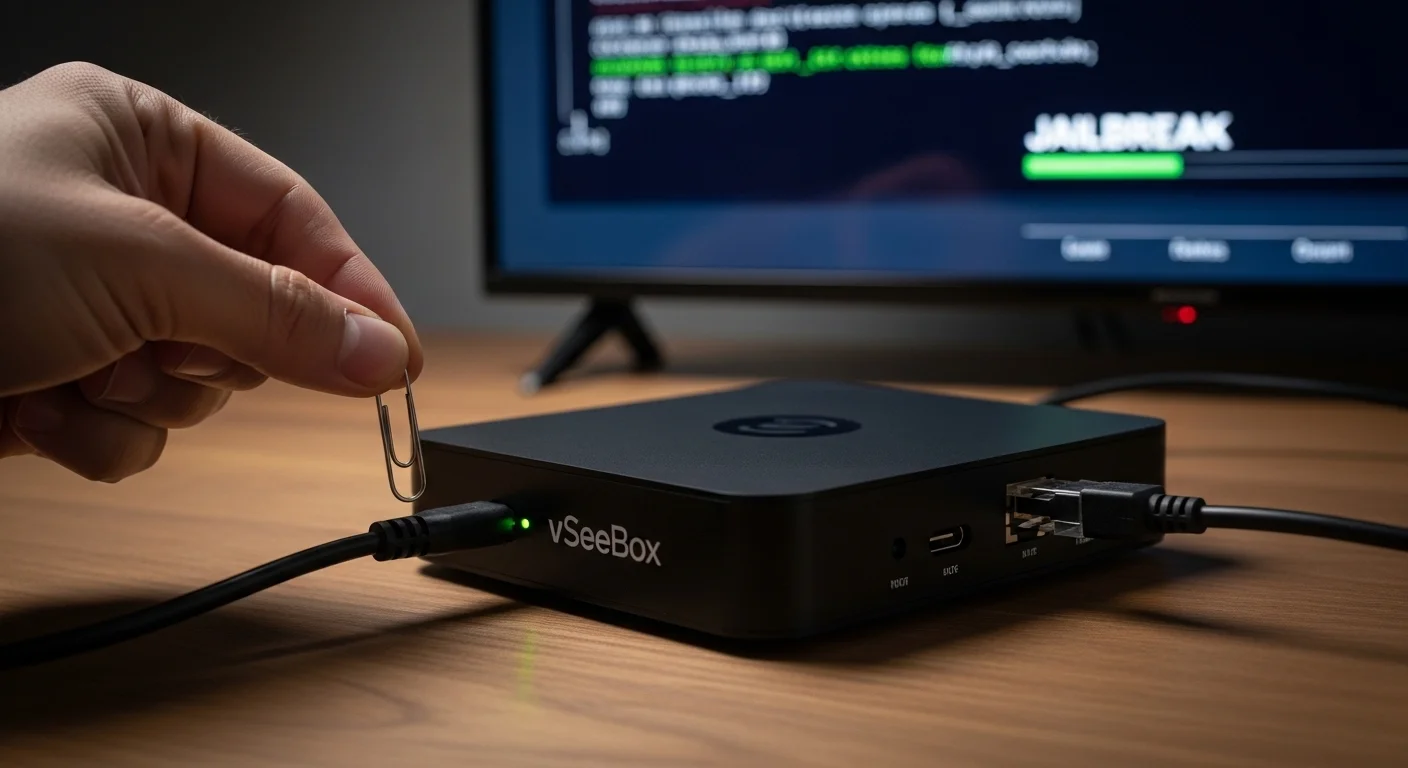
Jailbreaking a vSeeBox is a popular topic among streaming enthusiasts in the USA looking to expand their device’s capabilities. This guide explains what jailbreaking means, its legal implications, and provides a detailed, step-by-step walkthrough for those who choose to proceed. We focus on education, safety, and providing you with all the information needed to make an informed decision.

With over a decade of experience in streaming technology, IPTV apps, and Amazon Fire TV devices, James specializes in Firestick jailbreaking, app installation, and cord-cutting solutions for users in the UK.
 Add as a preferred source on Google
Jailbreak Vseebox
vSeeBox is an Android TV–based streaming device widely used in the USA for watching live TV, movies, sports, and on-demand content. While vSeeBox comes with built-in apps and features, many users want to unlock more content by using jailbreak and sideloading methods.
Ready to unlock the true potential of your VseeBox without the risk and constant maintenance?

What Does Jailbreaking vSeeBox Mean?
Understanding vSeeBox and Android TV OS
The vSeeBox is an Android TV set-top box that runs on a modified version of the Android operating system. Out of the box, it is designed to access approved apps from the Google Play Store and its own curated app store. “Jailbreaking,” in this context, refers to the process of removing software restrictions imposed by the manufacturer. This allows you to install applications (“APK files”) from unofficial third-party sources, a practice known as sideloading. It does not typically involve hardware modification or deeply altering the core system software like a full “root.”
Difference Between Jailbreaking and Normal Setup
A normal vSeeBox setup involves connecting to Wi-Fi, logging into your Google account, and downloading apps strictly from the official Google Play Store. Jailbreaking expands this by enabling “Unknown Sources” in the settings, allowing the installation of apps from outside the official ecosystem. This is often done to access free streaming apps, alternative media players, or customization tools not available on the Play Store.
Why Users in the USA Jailbreak vSeeBox
Users in the USA often jailbreak their vSeeBox to access a wider variety of free streaming content, use custom interfaces, or install apps that are geo-restricted on the official store. The primary goal is to unlock the full potential of the Android TV hardware beyond the vendor’s intended limitations.
Is It Legal to Jailbreak vSeeBox in the USA?
US Laws on Android TV Box Jailbreaking
Under U.S. law, specifically the Digital Millennium Copyright Act (DMCA), jailbreaking a smartphone has explicit exemptions for the purpose of interoperability. However, these exemptions do not clearly extend to Android TV boxes like the vSeeBox. The legal act of modifying the software on your own device is generally permissible, but what you do with that modified device can cross legal lines.
Legal Risks of Jailbreaking vSeeBox
The jailbreaking process itself carries minimal legal risk for the end-user. The significant risks arise from using the jailbroken device to access copyrighted content without proper licensing or payment. Distributing or selling pre-jailbroken devices loaded with infringing apps is illegal.
What Is Allowed vs What Is Not
- Allowed: Modifying your own device’s settings to sideload legal, open-source, or personally developed applications. Using the device to access legal free content or your personal media library.
- Not Allowed: Using sideloaded apps to stream copyrighted movies, live TV channels, or premium sports events without a subscription. Selling modified devices for the purpose of copyright infringement.
Does Jailbreaking Void vSeeBox Warranty?
Yes, jailbreaking your vSeeBox will almost certainly void its manufacturer’s warranty. If the device malfunctions or experiences software issues, the manufacturer can deny support or repairs.
Things to Do Before You Jailbreak vSeeBox
Safe vSeeBox Setup for Beginners
Start with a clean slate. Perform a factory reset on your vSeeBox if it’s been used. Go through the initial setup: connect to your network, update the system software to the latest version via Settings > About > System Update, and sign into a Google account.
Avoid Malware on vSeeBox Jailbreak
The biggest threat when sideloading is malware. Only download APK files from reputable sources you trust. Avoid “all-in-one” hacking apps that promise free everything, as they are common carriers of malware.
Internet, Storage, and Backup Checklist
- Internet: Use a stable, high-speed internet connection. Consider the use of a VPN for privacy, though it is not strictly required for the jailbreak process itself.
- Storage: Ensure you have enough free internal storage or have a formatted USB drive ready for app installations.
- Backup: Note down your installed apps and settings. While a full backup is complex without root, knowing your configuration helps.
How to Enable Developer Options on vSeeBox
Step-by-Step Guide to Enable Developer Options vSeeBox
- From the vSeeBox home screen, navigate to Settings (the gear icon).
- Select Device Preferences.
- Scroll down and highlight About.
- Scroll to Build Number.
- Using your remote, click on Build Number 7 times consecutively. You will see a countdown (“You are now 3 steps away from being a developer”) and finally a message: “You are now a developer!”
Turn On Unknown Sources on vSeeBox
- Go back to Settings > Device Preferences.
- You will now see a new menu option called Developer Options. Enter it.
- Scroll down and find Unknown Sources.
- Toggle it ON. Read the warning and confirm. This is the core setting that enables jailbreaking/sideloading.
Understanding vSeeBox Developer Mode Settings
While in Developer Options, you can also enable USB Debugging if you plan to use a computer with ADB commands for advanced sideloading. For most users, simply enabling Unknown Sources is sufficient.
How to Jailbreak vSeeBox – Step-by-Step Method
Technical Steps for vSeeBox Jailbreak
The term “jailbreak” is achieved simply by enabling Unknown Sources. The next step is to install a third-party app store or file manager to facilitate sideloading.
vSeeBox Jailbreaking Steps Explained Simply
- Enable Developer Options & Unknown Sources (as shown in the previous section).
- Install a File Manager: From the Google Play Store on your vSeeBox, install a file manager like Downloader (by AFTVnews) or X-Plore File Manager.
- Install a Sideloading App/Store: Open the Downloader app. In its browser, go to the official website of a reputable third-party app store (e.g., APKTime or Aptoide TV). Download and install its APK file. The file manager will guide you through the installation.
- Launch & Explore: Open your newly installed app store. You can now browse and install various third-party applications directly onto your vSeeBox.
Common Errors and How to Fix Them
- “Install Blocked”: Ensure Unknown Sources is enabled for the app you are using (e.g., your file manager or browser).
- “Parse Error”: The APK file is corrupt or incompatible with your Android version. Re-download it from the official source.
- App Crashes on Launch: The app may not be designed for Android TV (requires a mouse/toggle, or is phone-only). Look for “Android TV” versions of apps.
How to Sideload Apps on vSeeBox
What Is Sideloading on Android TV?
Sideloading is the process of installing an application package (APK) onto your device from a source other than the official Google Play Store.
Install Third-Party APK on vSeeBox
Using the Downloader app is the simplest method. Enter the direct URL of the APK file you wish to install, download it, and follow the installation prompts.
USB Sideload on vSeeBox (No PC Method)
- On a computer, download the desired APK file to a USB flash drive.
- Safely eject the USB and plug it into your vSeeBox.
- Use your file manager app (like X-Plore) to navigate to the USB drive.
- Select the APK file and choose “Install.”
Android TV Side Loading in the USA
The process is identical regardless of location. A VPN is not needed for sideloading itself but may be required to access content within some sideloaded apps.
How to Access More Apps on vSeeBox
After jailbreaking, you can explore repositories of Android TV apps. Popular legal options include F-Droid for open-source software or GitHub for developer projects. Always verify the legitimacy of the source.
Using Unauthorized Apps on vSeeBox
What Are Unauthorized Apps on vSeeBox?
These are apps not vetted or available on the Google Play Store. They often provide free access to streams of copyrighted material, which is their primary legal and ethical issue.
Risks of Installing Unknown APK Files
Risks include malware that can steal data, cryptojacking software that uses your device’s resources to mine cryptocurrency, and system instability or crashes.
How to Stay Safe While Using Third-Party Apps
- Use a reputable antivirus app from the Play Store.
- Read community reviews and forums before installing an unknown app.
- Never enter sensitive personal or financial information into these apps.
- Consider using a VPN to shield your internet activity from your ISP, especially when streaming.
Advanced vSeeBox Mods, Tweaks & Customization
vSeeBox Root or Unlock – What It Means
Full “rooting” provides superuser access to the entire Android system, allowing deep customization, bloatware removal, and system-level changes. This is far more complex and risky than standard jailbreaking and is not recommended for vSeeBox due to high bricking potential.
Best vSeeBox Mods and Tweaks
- Custom Launchers: Install alternative home screens like Sideload Launcher or ATV Launcher for a cleaner interface.
- Button Remappers: Use apps to reconfigure your remote control.
- Performance Boosters: Clear cache regularly and use utility apps to manage background processes.
Complete vSeeBox Customization Guide
Start small. Change your wallpaper, reorganize your app list on the home screen, and adjust display settings. Use sideloaded utility apps to manage startup programs and keep the system clean.
Performance and Stability Tips After Jailbreaking
- Do not overload the device with dozens of sideloaded apps.
- Restart the box periodically.
- Uninstall apps you no longer use.
Common Problems After Jailbreaking vSeeBox
Apps Not Installing or Crashing
Confirm the APK is built for your device’s architecture (usually ARM) and Android version. Try an older version of the app.
vSeeBox Freezing or Slow Performance
This is often due to insufficient RAM or storage. Close background apps, clear app caches (Settings > Apps > [Select App] > Clear Cache), or remove heavy, poorly optimized apps.
How to Fix Sideloading Errors
Re-download the APK. Ensure your file manager has permission to install apps (Settings > Apps > [File Manager] > Permissions).
Alternatives to Jailbreaking vSeeBox
Android TV Box Jailbreak Alternatives
Consider legal streaming devices like the Chromecast with Google TV, Amazon Fire Stick, or Roku. They offer vast libraries of legal, licensed content through official apps.
Legal Streaming Options in the USA
Subscriptions like Netflix, Hulu, Disney+, HBO Max, YouTube TV, and Sling TV provide extensive content legally and in high quality, often with better reliability and safety.
When You Should Avoid Jailbreaking
Avoid jailbreaking if you are not technically comfortable, value system stability and warranty, or are solely interested in easily accessible, premium legal content.
Can You Un-Jailbreak or Reset vSeeBox?
Factory Reset vSeeBox
Yes. A factory reset will remove all jailbreaking modifications.
- Go to Settings > Device Preferences > Reset.
- Select Factory data reset and confirm.
This will restore the box to its original out-of-the-box state, removing all sideloaded apps and settings.
Remove Third-Party Apps Safely
Before a reset, you can manually uninstall apps: Settings > Apps > [Select App] > Uninstall.
Restore Default vSeeBox Settings
Within Developer Options, you can toggle Unknown Sources back to OFF. However, a factory reset is the only way to fully “un-jailbreak.”
Frequently Asked Questions (FAQ)
Is Jailbreaking vSeeBox Safe in the USA?
The process itself is low-risk if done carefully. The ongoing risk comes from using unauthorized apps, which may contain malware or expose you to legal issues regarding copyrighted content.
Does vSeeBox Jailbreaking Affect Updates?
It can. Some system updates may fail to install on a modified device, or they may reset your settings (turning Unknown Sources off). Major updates could also cause conflicts with sideloaded apps.
Can Beginners Jailbreak vSeeBox Easily?
Yes, the process outlined in this guide (enabling Unknown Sources and using Downloader) is designed for beginners. The key is following each step carefully.
Is a VPN Needed After Jailbreaking vSeeBox?
A VPN is not required for the jailbreak but is strongly recommended if you plan to use apps that stream copyrighted material. It can also provide general privacy benefits. For legal sideloading and streaming, a VPN is optional.
Final Thoughts on Jailbreaking vSeeBox
Key Takeaways for USA Users
Jailbreaking a vSeeBox is a simple software toggle that unlocks sideloading. The legality in the U.S. hinges on how you use the device, not the act itself. Prioritize safety by using reputable APK sources and consider the real risks of malware and voided warranty.
Should You Jailbreak Your vSeeBox or Not?
Jailbreak if: You are tech-savvy, understand the risks, desire apps outside the Play Store for legitimate reasons, and accept the loss of warranty.
Do not jailbreak if: You prefer a simple, stable, and fully supported experience, primarily use mainstream streaming services, or are concerned about legal and security risks.
Is Jailbreaking a Firestick Legal in the UK?
Many people in the UK ask whether jailbreaking a Firestick is legal or not. The short answer is: jailbreaking a Firestick itself is legal in the UK, but how you use it matters a lot.
When you jailbreak Firestick, you are only changing the device settings to allow third-party apps. This process does not break UK law on its own. Amazon Firestick devices are owned by the user, so changing settings for personal use is allowed.
However, problems start when a jailbroken device is used to watch paid TV channels, Sky content, movies, or sports for free without permission. This is illegal in the UK and goes against copyright laws. The law focuses more on what you watch, not just the jailbreaking step.
If you want a safe and detailed explanation, visit this guide on jailbreak firestick to understand what is allowed and what is risky. Many UK users jailbreak Firestick to install legal apps like Kodi for free content.
To stay on the safe side, always use legal apps and services after jailbreak firestick. For updated UK rules and beginner tips, this jailbreak firestick guide is a helpful resource.