
How Do I Jailbreak My Fire TV? Easy Step-by-Step Guide (UK)
People search for “how do I jailbreak my Fire TV” because they want more from their device. The main reasons are to install third-party apps that are not on the Amazon Appstore, remove some of Amazon’s built-in restrictions, and customise their home screen. The good news is that “jailbreaking” a Fire TV is not like jailbreaking an iPhone. It is much simpler and completely legal. You do not need to hack or “root” the device, which is a complex and risky process. Fire TV devices are very popular in the UK, and this guide will show you the safe, official way to unlock their full potential. We will cover what it really means, the simple steps, and what you can do afterwards.

With over a decade of experience in streaming technology, IPTV apps, and Amazon Fire TV devices, James specializes in Firestick jailbreaking, app installation, and cord-cutting solutions for users in the UK.
 Add as a preferred source on Google
How to Get Sky Glass Playlist on Firestick (Free & Jailbreak Methods)
Sky Glass is a premium UK-based streaming service offering live TV, sports, movies, and exclusive Sky channels. While a paid subscription is required for official access, many users look for ways to watch Sky Glass on Firestick for free using jailbreak methods. Below, we explore safe (and legal) alternatives to enjoy Sky Glass content without a subscription.
Get Free Sky Glass
What Is Fire TV Jailbreaking?
Jailbreaking a Fire TV does not mean breaking anything. Think of it more like turning a key to unlock a door. Amazon keeps that door locked by default for security. When you “jailbreak,” you are just turning the key to open it.
MUST-DO Before You Jailbreak Firestick
Before you Jailbreak Firestick, complete these 3 safety checks:
- Enable Unknown Sources
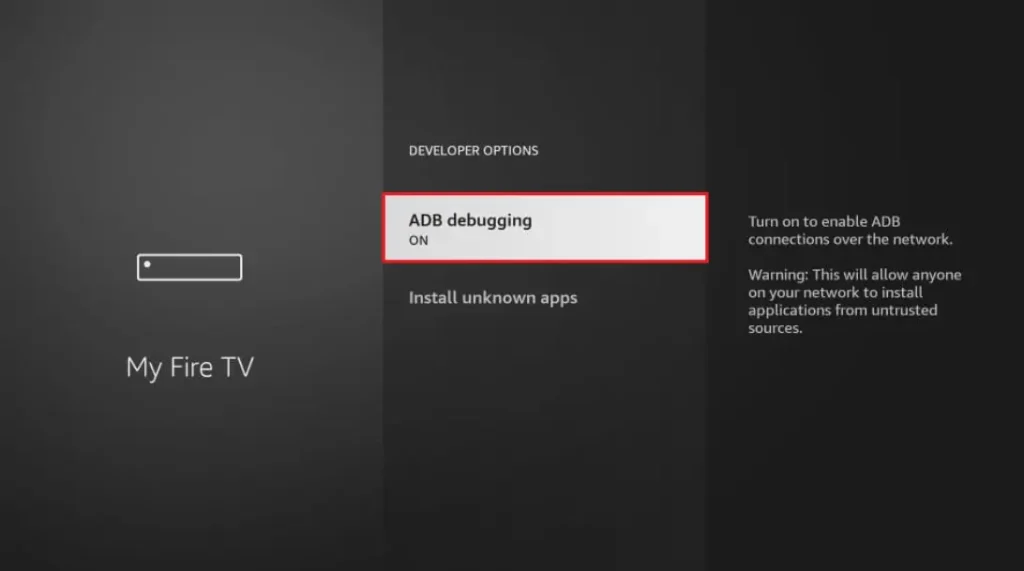
- Go to: Settings > My Fire TV > Developer Options
- Turn ON “Apps from Unknown Sources”
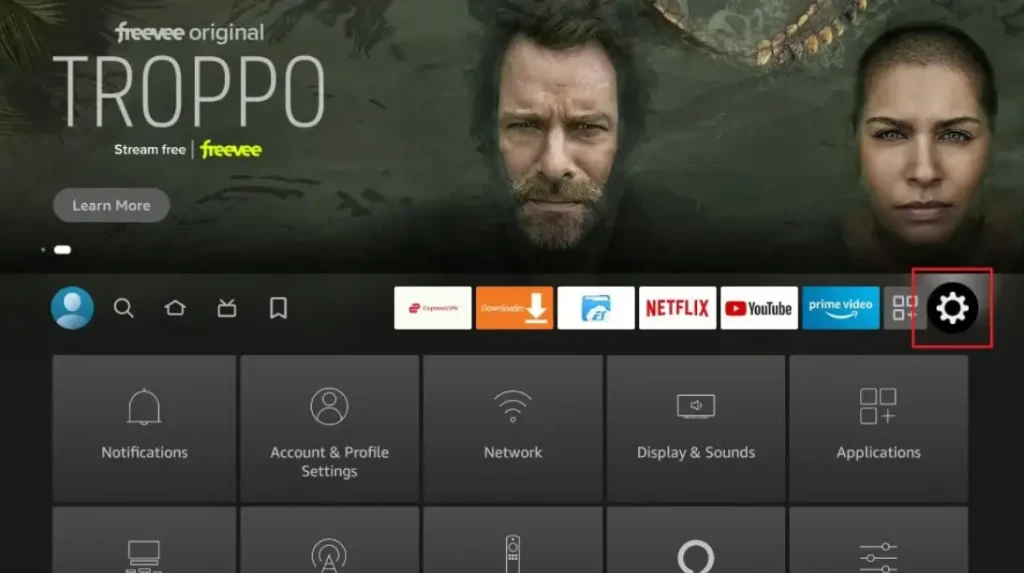
Go into Settings Option
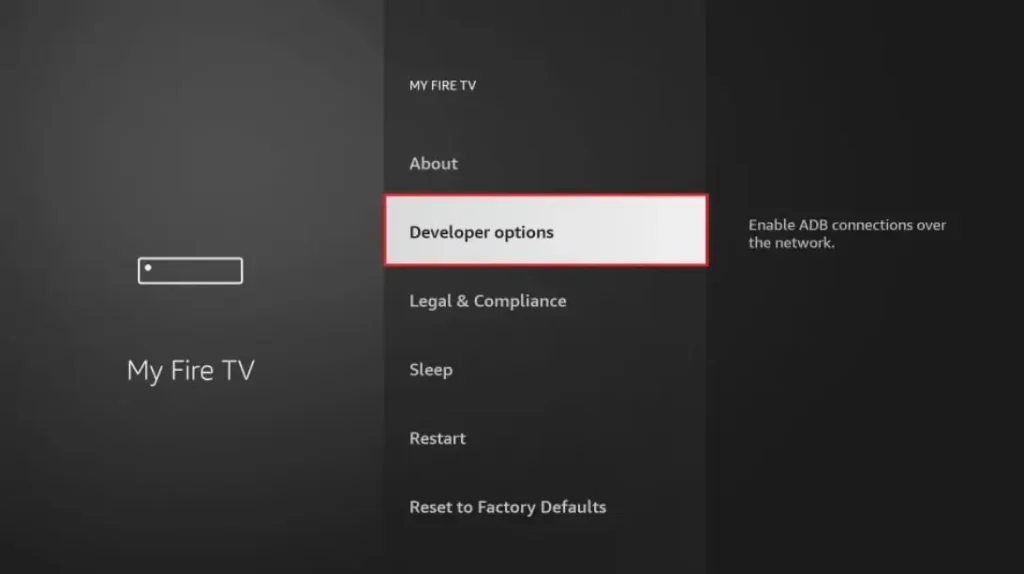
Then Click on Developer Options
Then Click on install unknown Apps
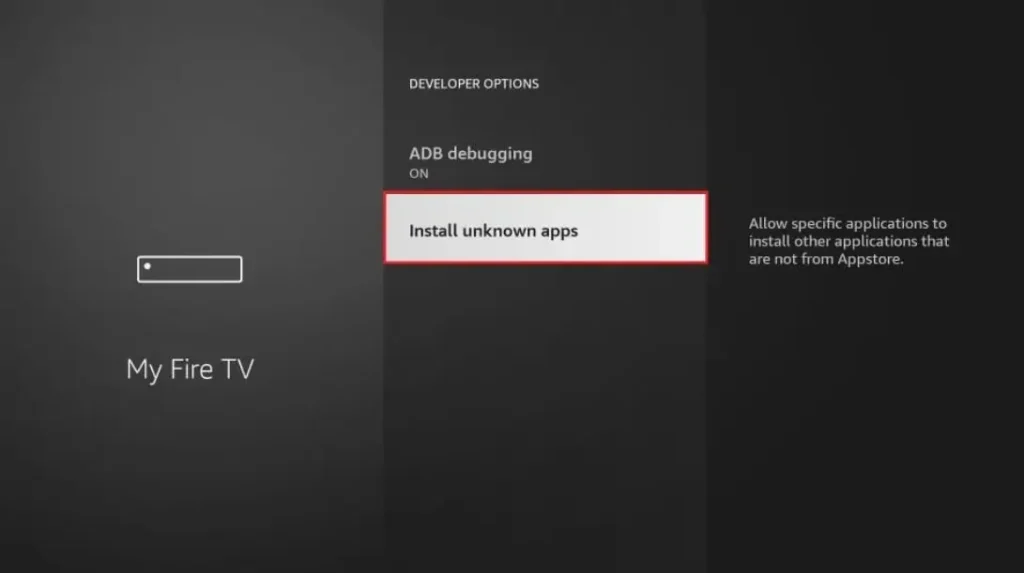
Turn ON “Apps from Unknown Sources”
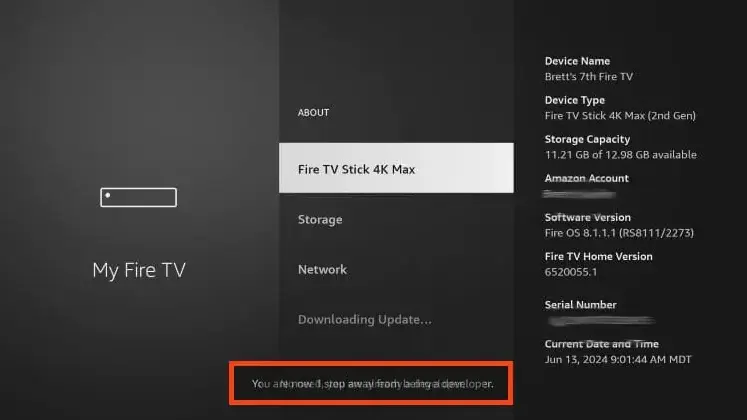
Click your device name 7 times
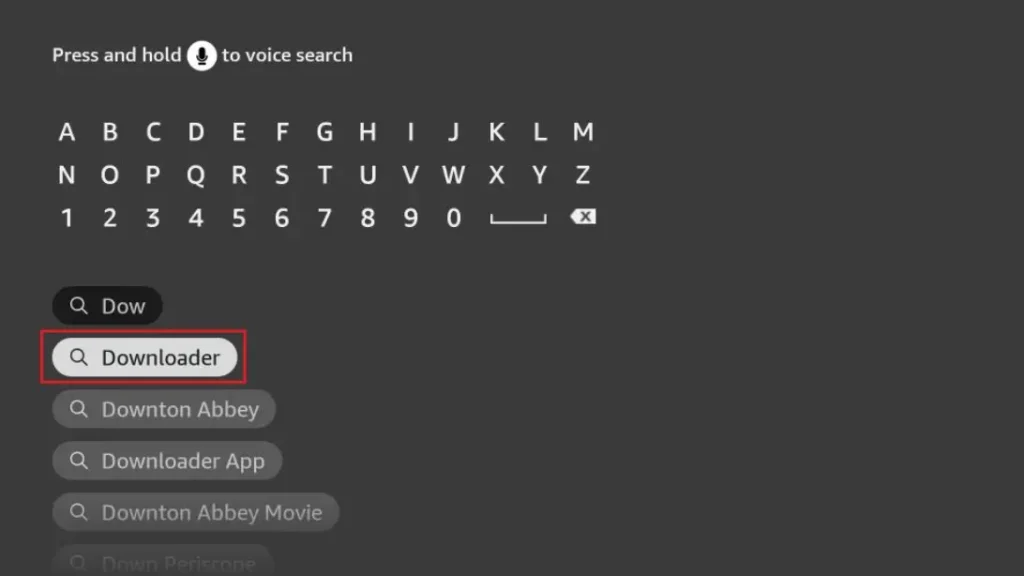
Step 1: Install Downloader App from Amazon Store
First, you need the Downloader app to jailbreak Firestick. This app lets you download the jailbreak tools. Here’s how to get it:
- Turn on your Firestick and go to the home screen
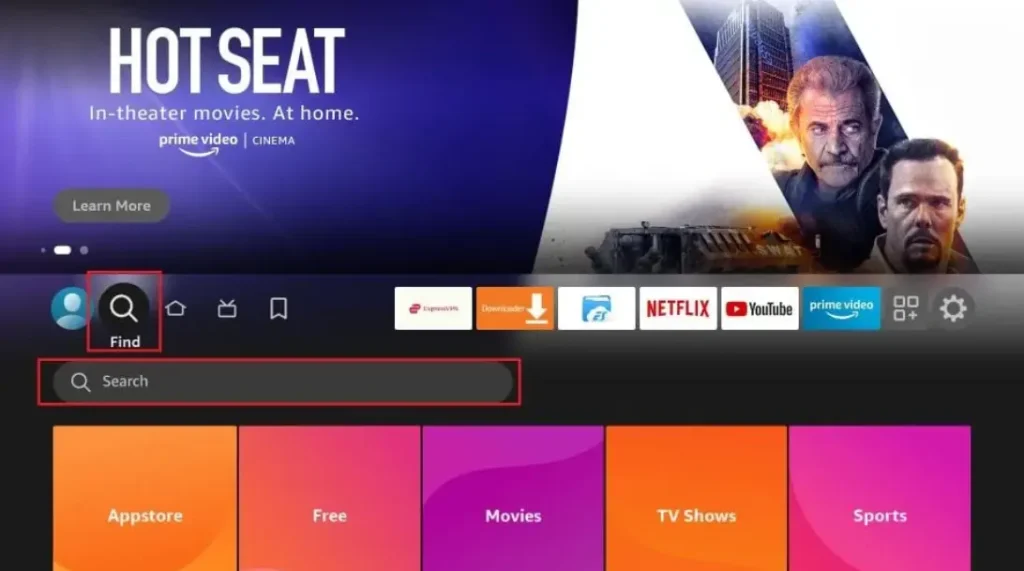
- Click the search icon (magnifying glass) at the top
- Type “Downloader” and select the orange app icon
- Click “Download” and wait for installation
- Open the app when it’s ready
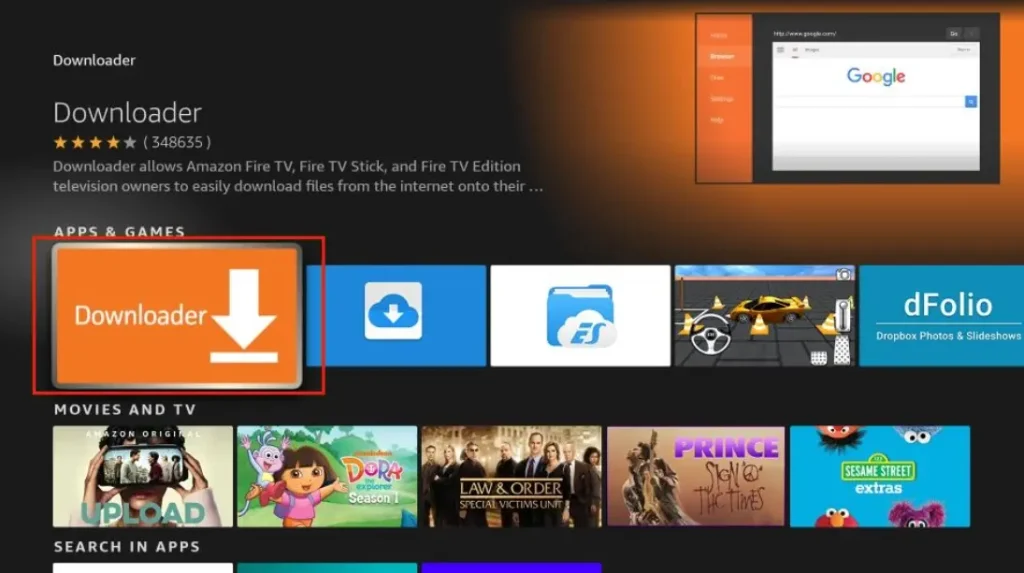
The Downloader app is free and safe. It’s the first tool you need to jailbreak Firestick. Without it, you can’t get the other apps that make jailbreaking work.
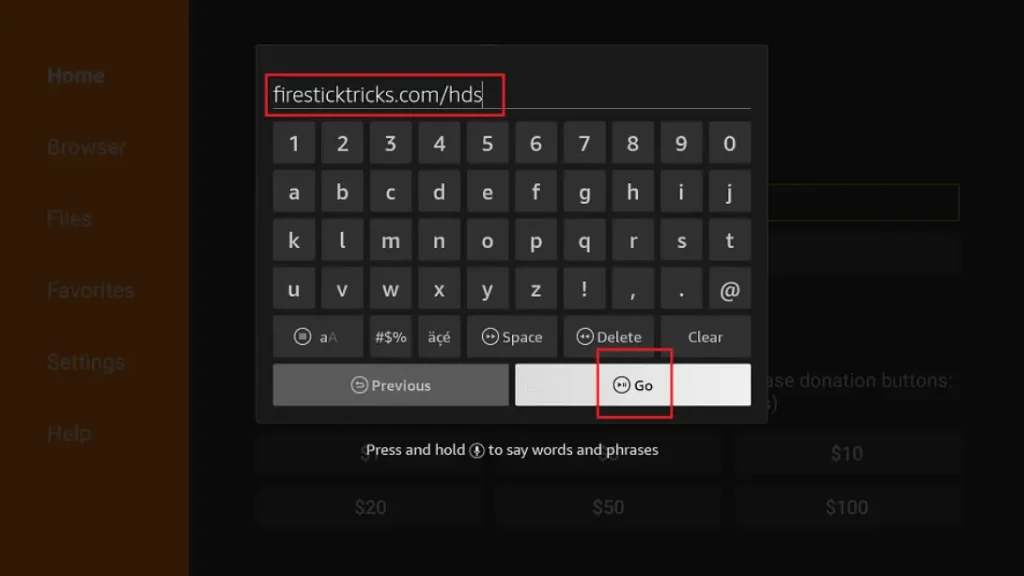
Step 2: Enter URL to Download Jailbreak Tool
Now that you have Downloader, you can get the jailbreak tools:
- Open Downloader app
- In the URL box, type: troypoint.com/fire (this is safe)
- Click “Go” and wait for the page to load
- Follow the on-screen instructions to download
- The installer will appear – click “Install”
This process allows you to install apps from places other than the official Amazon Appstore. You can do this by enabling a single setting called “Apps from Unknown Sources.” It also lets you use an app called “Downloader” to get software from the internet. You can even install different “launchers” that change how your Fire TV home screen looks.
It is important to know what it does NOT do. It does not give you free access to paid streaming services like Netflix or Disney+. It does not “hack” your device to steal content. The term “jailbreak” is a bit misleading because it sounds illegal or dangerous, but for Fire TV, it is a simple, safe, and approved option.
Is Fire TV Jailbreaking Legal in the UK?
The clear answer is yes, it is legal in the UK. Changing the settings on a device you own is your right. Amazon even puts the “Apps from Unknown Sources” option in the settings menu. They know users might want to use it.
However, you must understand a very important difference. Jailbreaking is legal. Streaming pirated content is not. Jailbreaking is the act of unlocking your device. What you choose to do with that unlocked device must still follow the law. Using an app to watch movies or live sports that are copyrighted without paying is illegal under UK copyright law. So, while the unlock process is fine, you must use it responsibly and only install apps from trusted sources for legal purposes.
Fire TV Models That Support Jailbreaking
The great news is that all modern Fire TV devices support this simple jailbreak method. You do not need to check your model number. If your device runs Amazon’s Fire OS software, you can do it.
This includes the budget Fire TV Stick Lite, the standard Fire TV Stick (HD, 4K, and 4K Max), the more powerful Fire TV Cube, and even smart TVs that have Fire TV built into them. The steps are exactly the same for every model. Amazon designed the software this way. There are no special restrictions on certain devices, so you do not have to worry about buying the “right” one.
Before You Start
You only need a few things to get ready. First, make sure your Fire TV device is plugged into your TV and connected to your home Wi-Fi. You should be signed into your Amazon account on the device. It is also a good idea to check for any software updates. Go to Settings > My Fire TV > About > Check for Updates. Installing the latest Fire OS makes sure everything runs smoothly. Have your Fire TV remote ready. Some people like to use a VPN for extra privacy, but this is completely optional and not required for the jailbreak process itself.
How to Jailbreak Fire TV (Step-by-Step)
Follow these simple steps. You will be done in just a few minutes.
Step 1: Enable Developer Options
From your Fire TV home screen, use your remote to go to Settings. Scroll to the right and select My Fire TV. On older models, this might be called Device or System. Inside that menu, select About. Now, click on the text that says Fire TV Stick (or the name of your device) seven times in a row. Click it quickly. A message will pop up saying, “You are now a developer!”
Step 2: Turn On Apps from Unknown Sources
Go back one screen. You will now see a new option called Developer Options. Open it. Inside, you will see Apps from Unknown Sources. It will be turned OFF. Select it and turn it ON. A warning message will appear. Read it and select Turn On to confirm. You can also turn on ADB Debugging below it. This is optional but can be helpful for some advanced apps later.
Step 3: Install Downloader App
Now, go back to your Fire TV home screen. Use the search function and look for “Downloader.” This is an app in the official Amazon Appstore. Download and install it. Once installed, open the Downloader app. It will ask for permission to access photos, media, and files. Select Allow. This app will act as a web browser so you can download other apps from the internet.
Step 4: Fire TV Is Now Jailbroken
That’s it! Your Fire TV is now “jailbroken.” You have not changed any important system files. You have simply turned on a setting that Amazon provides. You can now use the Downloader app to install applications from trusted websites. If you ever want to reverse this, just go back to Developer Options and turn Apps from Unknown Sources back to OFF.
What Jailbreaking Fire TV Allows You to Do
Now that your device is set up, you can do much more. You can install third-party streaming apps that are not on the Amazon Appstore. You can add file manager apps to organise videos and photos stored on a USB drive. You can install powerful media player apps for different video formats. You can even change the look of your Fire TV’s home screen with a custom launcher.
This is especially useful in the UK. Sometimes, an app is available in other countries but not in the UK Amazon Appstore. Jailbreaking lets you download the official app file from the developer’s website and install it yourself. Remember, there are still limitations. You cannot install apps made for Windows or macOS. The apps must be built for the Android-based Fire OS system.
Best Apps for Jailbroken Fire TV
After jailbreaking, here are some great and legal apps to try. Downloader is essential—it’s your tool for getting other apps. A web browser like Firefox or Silk lets you surf the internet on your TV. VLC Media Player or Kodi are fantastic for playing almost any video file from a USB stick or your home network. File Manager apps help you organise your downloads.
Always focus on legal use. Look for apps from well-known developers and official websites. Avoid any app that seems to promise “free” access to brand-new cinema movies or premium live sports. These are almost always illegal and unsafe.
Fire TV Jailbreak Problems & Solutions
If something does not work, here are easy fixes.
If Developer Options is missing, you probably did not click your device name seven times. Go back to Settings > My Fire TV > About and try again.
If Downloader will not install, check your internet connection. Also, make sure you are searching in the Amazon Appstore, not just on the home screen.
Sometimes, after a Fire OS update, Unknown Sources gets turned off again. Just go back to Developer Options and turn it back ON.
If an app is blocked, try clearing the cache for the Downloader app in Settings > Applications > Manage Installed Applications.
As a last resort, you can perform a factory reset in Settings > My Fire TV > Reset to Factory Defaults. This will erase everything and put your Fire TV back to how it was when you bought it, removing the jailbreak.
Jailbreaking vs Rooting Fire TV
It is important to know the difference. Jailbreaking, as we did, is simple and safe. It uses a built-in setting.
Rooting is completely different and much more dangerous. Rooting means gaining full “administrator” access to the entire operating system. It can permanently damage your device, void your warranty, and make it insecure. It is also very difficult and not needed for what most people want to do. For almost every UK user, jailbreaking is all you will ever need. Never try to root your Fire TV.
Frequently Asked Questions
How do I jailbreak my Fire TV safely?
Follow the steps in this guide to enable Developer Options and turn on Apps from Unknown Sources. Only install apps from trusted sources.
Does jailbreaking Fire TV void warranty?
No. Using the “Apps from Unknown Sources” setting does not void your Amazon warranty. However, if you physically damage the device while trying to do something else, that is not covered.
Can Fire TV be un-jailbroken?
Yes, easily. Just go to Settings > My Fire TV > Developer Options and turn Apps from Unknown Sources back to OFF. Your device will be back to standard.
Is jailbreaking Fire TV legal in the UK?
Yes, the process of enabling unknown sources is legal. Using it to access pirated content is not.
Does jailbreaking Fire TV give free channels?
No. Jailbreaking itself does not give you anything. It only allows you to install apps. Some of those apps may offer free, legal content, while others may offer illegal streams. You must choose carefully.
Conclusion
Jailbreaking your Fire TV is a quick, easy, and legal process that opens up many new possibilities. Just remember to enable Developer Options, turn on Unknown Sources, and use the Downloader app wisely. Enjoy exploring new apps and customising your device, but always use this power responsibly. Stick to legal content sources and have fun getting more from your Fire TV!
Is Jailbreaking a Firestick Legal in the UK?
Many people in the UK ask whether jailbreaking a Firestick is legal or not. The short answer is: jailbreaking a Firestick itself is legal in the UK, but how you use it matters a lot.
When you jailbreak Firestick, you are only changing the device settings to allow third-party apps. This process does not break UK law on its own. Amazon Firestick devices are owned by the user, so changing settings for personal use is allowed.
However, problems start when a jailbroken device is used to watch paid TV channels, Sky content, movies, or sports for free without permission. This is illegal in the UK and goes against copyright laws. The law focuses more on what you watch, not just the jailbreaking step.
If you want a safe and detailed explanation, visit this guide on jailbreak firestick to understand what is allowed and what is risky. Many UK users jailbreak Firestick to install legal apps like Kodi for free content.
To stay on the safe side, always use legal apps and services after jailbreak firestick. For updated UK rules and beginner tips, this jailbreak firestick guide is a helpful resource.
Related Post:
- Unlock Endless Entertainment: A Complete Guide to Jailbreaking Sky Glass on Your Firestick in the UK
- Unlock Your Firestick: The Truth About Sky Glass Jailbreak APKs for UK Viewers
- Jailbreak Sky Glass on Firestick: The Ultimate UK Guide to Unlocking Your TV in 2025
- Sky Glass Jailbreak Firestick APK Latest Version: A UK User’s 2025 Guide to Safe & Informed Streaming
- Jailbreak Sky Glass on Firestick Free Download: The Ultimate 2024 Guide for UK Streamers