
How to Jailbreak Amazon Fire TV – UK Step-by-Step Guide
Want to make your Amazon Fire TV do more? You might hear people talk about “jailbreaking” it. This guide will tell you all about it in simple words. Jailbreaking your Amazon Fire TV means letting it install apps from places other than the official Amazon App Store. It’s like unlocking a door to a bigger room full of toys.

With over a decade of experience in streaming technology, IPTV apps, and Amazon Fire TV devices, James specializes in Firestick jailbreaking, app installation, and cord-cutting solutions for users in the UK.
 Add as a preferred source on Google
Fire tv stick Lifetime Subscription
Ready to unlock the true potential of your fire tv stick without the risk and constant maintenance?
Get Fire tv stick LifeTime
This is very popular in the UK. People like having more choices for streaming their favourite shows and using fun tools. It gives your TV a big upgrade.
This guide only shows safe and legal ways to do it. The number one rule is this: you must never use jailbroken apps to watch movies or TV shows you didn’t pay for. That is not allowed. If you follow that rule, you are doing everything correctly.
In this article, we will explain what jailbreaking really means. We will talk about the law in the UK. We will then give you simple steps to follow to jailbreak your device. We will also suggest some great apps and share tips to stay safe. Let’s get started!
s Before You Jailbreak Firestick
Before you Jailbreak Firestick, complete these 3 safety checks:
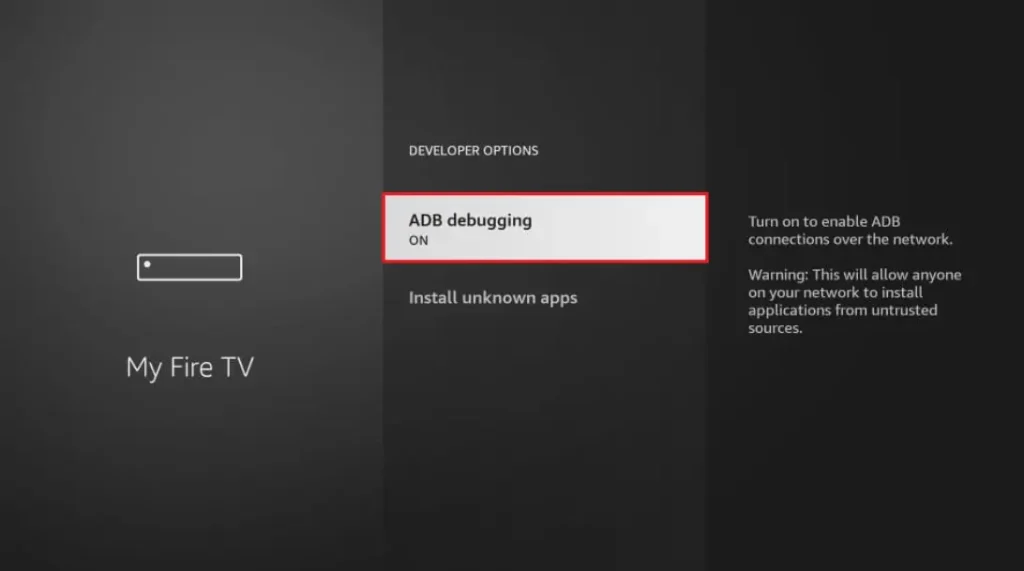
- Enable Unknown Sources
- Go to: Settings > My Fire TV > Developer Options
- Turn ON “Apps from Unknown Sources”
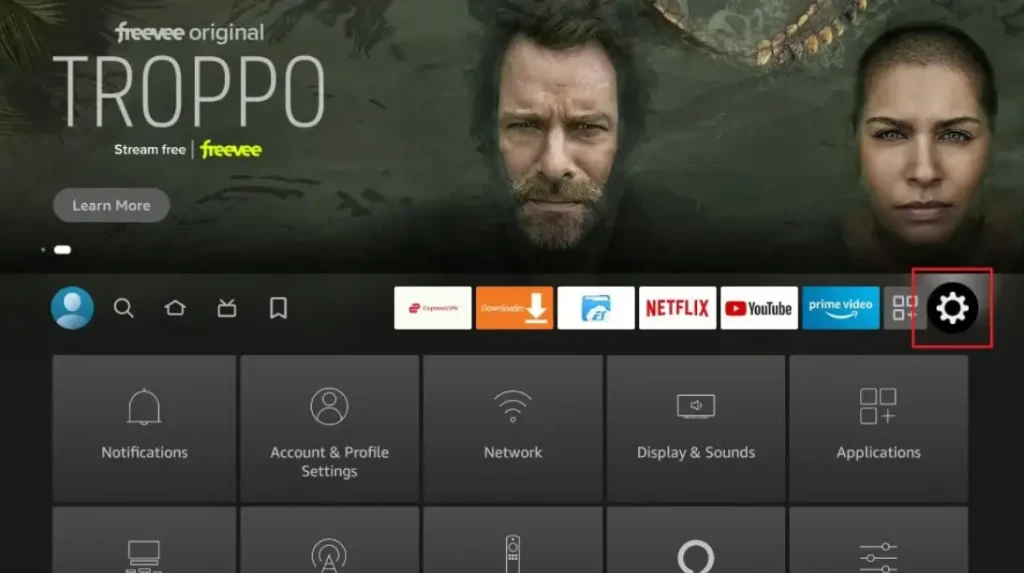
Go into Settings Option
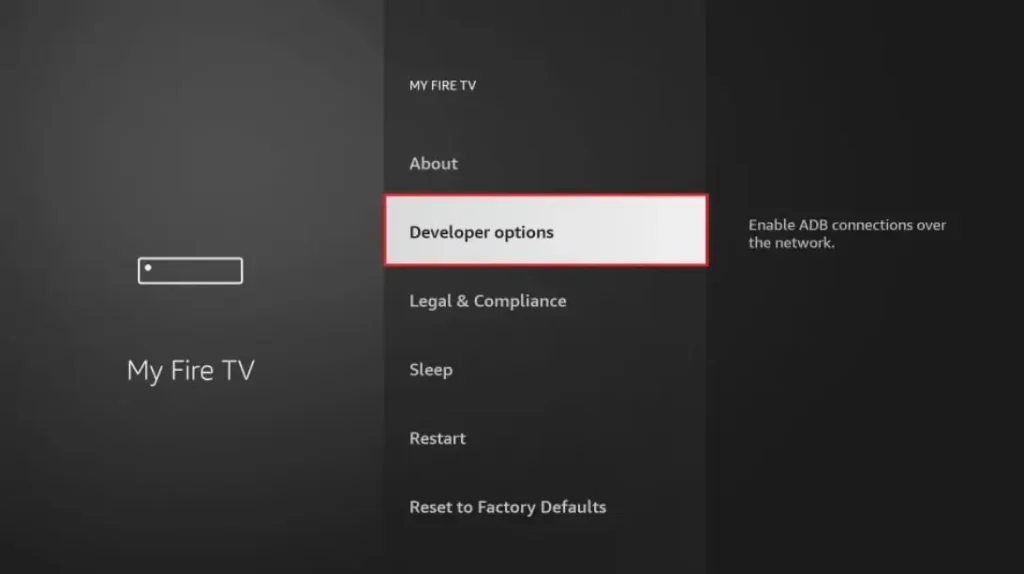
Then Click on Developer Options
Then Click on install unknown Apps
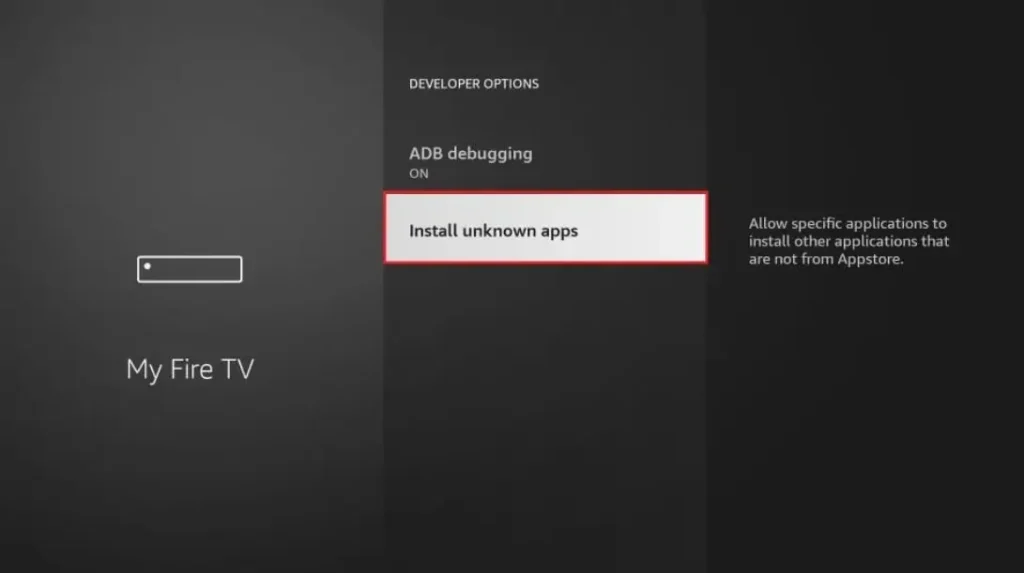
Turn ON “Apps from Unknown Sources”
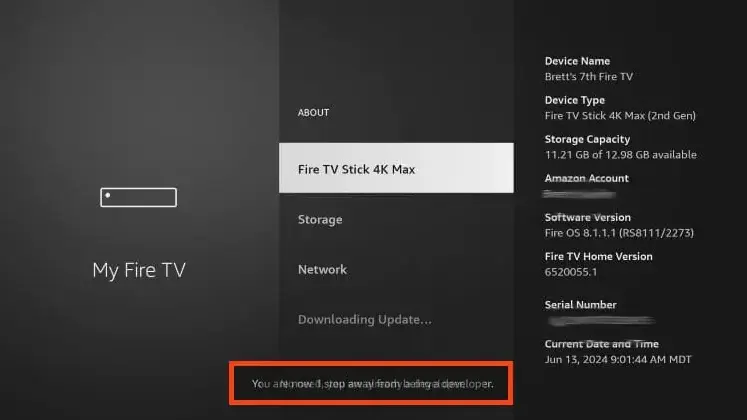
Click your device name 7 times
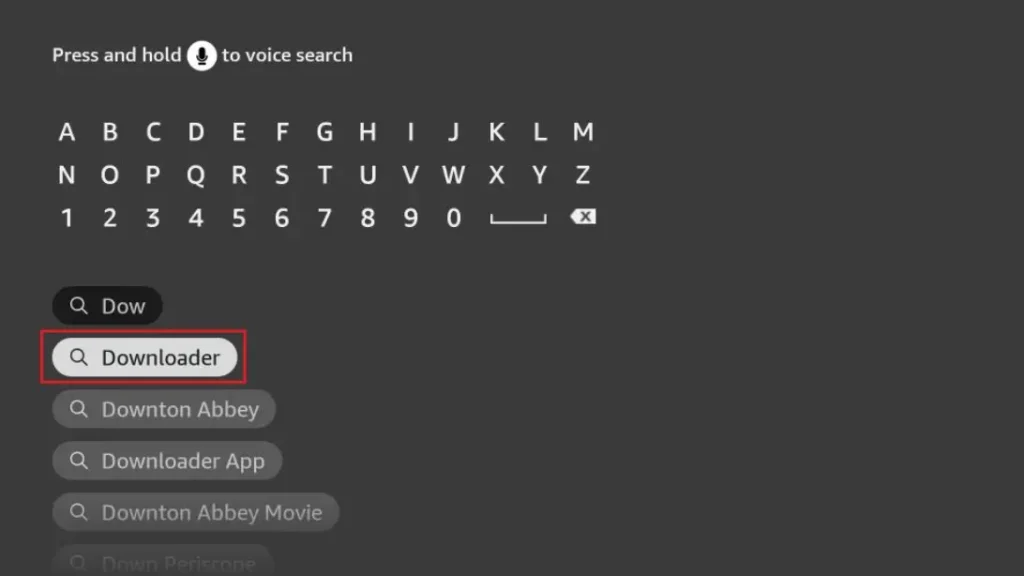
Step 1: Install Downloader App from Amazon Store
First, you need the Downloader app to jailbreak Firestick. This app lets you download the jailbreak tools. Here’s how to get it:
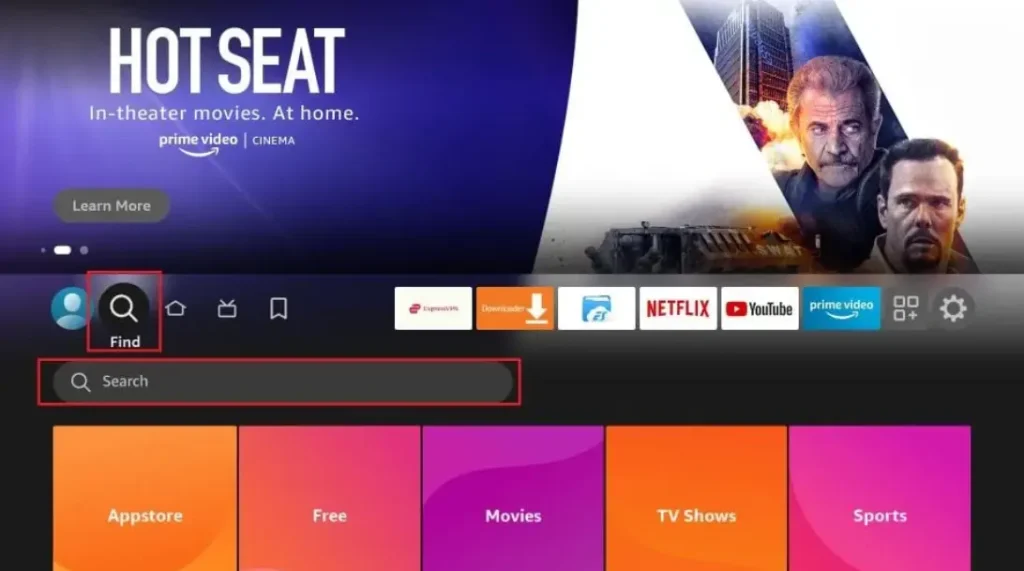
- Turn on your Firestick and go to the home screen
- Click the search icon (magnifying glass) at the top
- Type “Downloader” and select the orange app icon
- Click “Download” and wait for installation
- Open the app when it’s ready
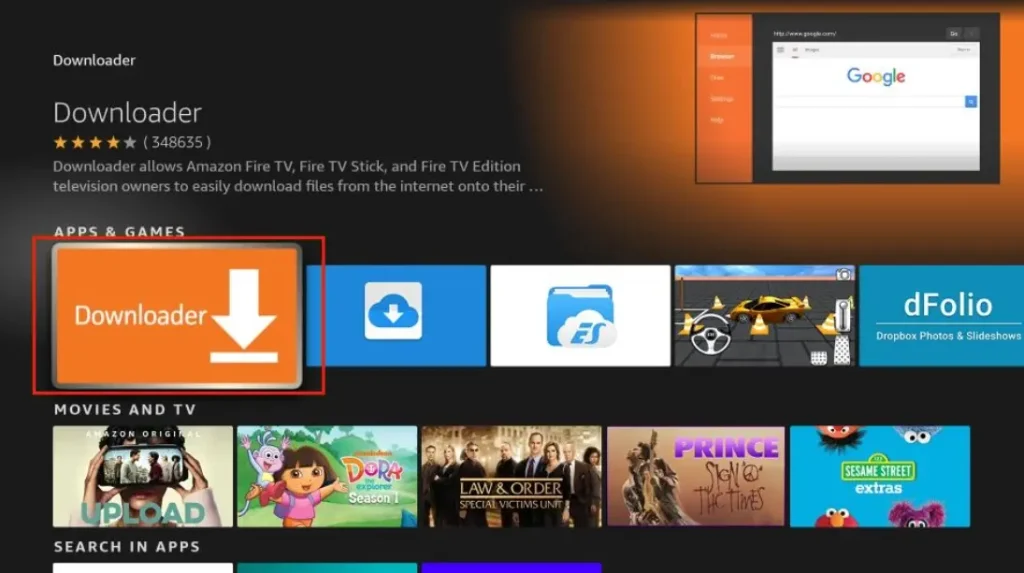
The Downloader app is free and safe. It’s the first tool you need to jailbreak Firestick. Without it, you can’t get the other apps that make jailbreaking work.
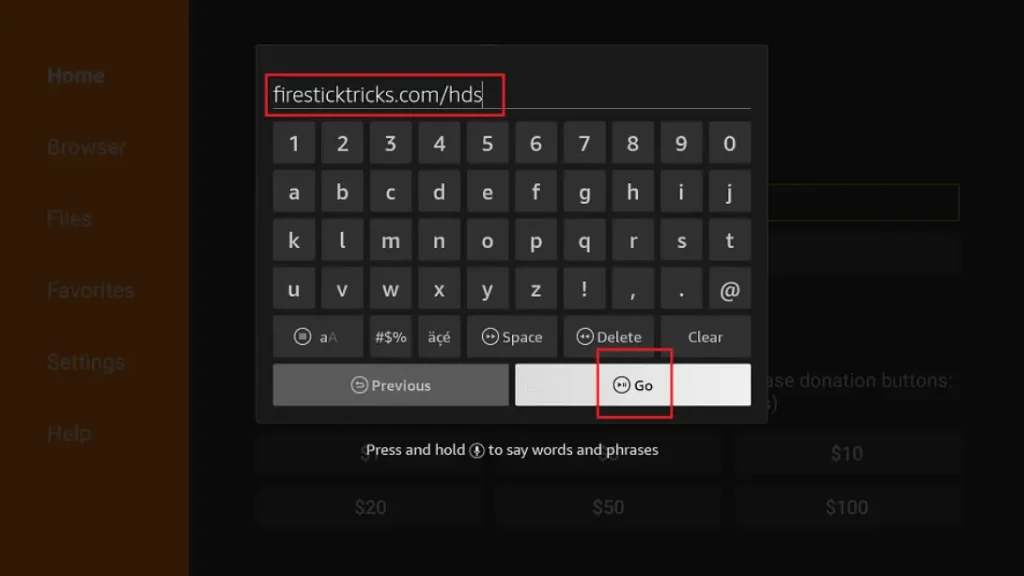
Step 2: Enter URL to Download Jailbreak Tool
Now that you have Downloader, you can get the jailbreak tools:
- Open Downloader app
- In the URL box, type: troypoint.com/fire (this is safe)
- Click “Go” and wait for the page to load
- Follow the on-screen instructions to download
- The installer will appear – click “Install”
What Does Jailbreaking an Amazon Fire TV Mean?
The Simple Answer
The word “jailbreak” sounds exciting. For your Amazon Fire TV, it means one easy thing: enabling the installation of third-party apps. Third-party apps are programs made by other companies, not Amazon. Your Fire TV normally only lets you install apps from its own shop. Jailbreaking changes a single setting to allow more apps.
This is not like jailbreaking a phone or a game console. You are not hacking into the device’s brain. You are not changing its secret code. The Amazon Fire TV already has this ability built inside. The company just keeps it turned off at the start. You are simply finding the switch and turning it on.
How It’s Done and What It Doesn’t Do
You look for a special setting called “Apps from Unknown Sources.” You find it in your device’s menu and switch it from OFF to ON. After that, you can use an app like “Downloader” to install new apps directly from the internet onto your TV.
Let’s clear up two important ideas. First, jailbreaking is fully reversible. If you decide you don’t like it, you can turn the setting off. You can even reset the whole device to its factory settings. It will return to exactly how it was before. Second, it does not void your warranty. Changing this setting does not break any agreement with Amazon. Your device’s warranty protection stays in place.
Is Jailbreaking Amazon Fire TV Legal in the UK?
The Law is Clear
Here is the important fact: In the United Kingdom, jailbreaking your own Amazon Fire TV is legal. You own the device. UK law says you can modify the software on things you own. Turning on the “Apps from Unknown Sources” setting is perfectly fine.
But you must understand a very important line. Watching pirated content is illegal. Pirated content means movies, sports, or shows that people share online without permission from the creators. UK copyright law protects these creators. Streaming their work for free from illegal websites breaks that law.
It’s All About Your Choices
Think about a bicycle. Painting your bicycle a new colour is legal. Using your bicycle to steal a newspaper is not legal. Your jailbroken Fire TV is like the bicycle. What you do with it is your responsibility.
That responsibility always stays with you, the user. This guide encourages you to use only legal apps and streaming services. Many amazing free and legal apps exist for learning, music, and fun videos. You can explore so many new things without ever doing anything wrong.
Requirements Before Jailbreaking
Getting ready is fast and easy! First, you need a compatible Amazon Fire TV device. This could be a Fire TV Stick, a Fire TV Stick 4K, or a Fire TV Cube. You also need a TV with an HDMI port to plug it into.
A stable internet connection is needed to download new apps. Make sure you are logged into your Amazon account on the device. Finally, have your Fire TV remote control nearby. With these five simple things, you are ready to begin.
Step-by-Step Guide to Jailbreak Amazon Fire TV
Step 1: Go to Settings
Turn on your TV and Amazon Fire TV. Look at the home screen. Use your remote to move to the top of the screen. Find the option called Settings. It usually looks like a little gear or cog. Click on it to open the main Settings menu.
Step 2: Enable Developer Options
Inside the Settings menu, scroll to the right. Look for and select the option named “My Fire TV.” On the next screen, choose “About.” Now, here’s a cool secret. On the “About” screen, find the line that says “Fire TV” or your model name. Quickly press the center button on your remote seven times. A message will pop up saying, “You are now a developer!” A new menu option will appear.
Step 3: Turn on Apps from Unknown Sources
Press the back button on your remote to go back to the “My Fire TV” menu. You will now see a new option called “Developer Options.” Open it. Inside, look for the setting called “Apps from Unknown Sources.” It will be switched OFF. Select it to turn it ON. You will see a warning message. Read it and choose “Turn On.” This is the main step that jailbreaks your device.
Step 4: Install Downloader App
Go back to your home screen. Find the search icon. It often looks like a magnifying glass. Use the search to look for the word “Downloader.” From the results, pick the official Downloader app. Click “Download” or “Get” to install it. Once it’s installed, open the app. It might ask for permission to access files – allow this.
Step 5: Download Third-Party Apps via Downloader
Inside the Downloader app, you will see a box where you can type a website address (URL). You need to type the exact URL for a trusted app website. For example, a website for a legal weather app. Type the address carefully and press “Go.” The app file (called an APK) will download. The Downloader will then ask if you want to install it. Click “Install.” After it installs, you can open your new app. Always choose to delete the APK file when asked. This saves storage space. Remember: only use website addresses from sources you truly trust.
Best UK-Friendly Apps for Jailbroken Fire TV
Great Apps to Try
Now comes the fun part—finding new apps! Good types of apps to look for include media players like Kodi or Plex. When used the right way, these can play videos from your own computer or hard drive. File manager apps help you organize your pictures and music on a USB stick. A web browser lets you visit websites on your big TV screen. Utility apps can help your device run smoother or change its look.
How to Pick Apps Safely
Choosing apps carefully is very important. Always use reputable sources. Look for apps recommended on good technology websites or in official forums. You should avoid apps that promote illegal content. These apps often have flashy names promising free new movies or live sports. They are usually not safe and can cause trouble. Pick apps that have a clear and legal purpose.
Benefits of Jailbreaking Amazon Fire TV
Jailbreaking gives you many good things. The biggest benefit is access to more apps and streaming services. You are no longer limited to just what Amazon sells. This allows for full customization of your TV experience.
You can avoid subscription lock-ins from big companies. Instead, you can find many free, legal services to enjoy. This is very flexible for UK viewers who want to watch content from around the world. Overall, you get better control over your device. You are in charge.
Risks and Safety Tips
Possible Problems to Know
It’s smart to know about risks so you can avoid them. The main risk is downloading malicious apps or malware from bad websites. These can try to steal your information or fill your screen with too many ads. Some poor performance apps can make your Fire TV run slowly or freeze. There can also be privacy risks if an app collects your personal data without asking.
Easy Safety Rules
Staying safe is simple. First, only use trusted apps from sources that experts recommend. Second, keep your Fire OS updated. Go to Settings > My Fire TV > About > Check for Updates. Updates often fix security problems. Third, delete unused apps to keep your device running fast. Finally, avoid clicking on unknown pop-ups inside apps. If a pop-up looks strange, just press the back button to close it.
Can Amazon Block or Ban a Jailbroken Fire TV?
Many people ask this question. The good news is that Amazon generally does not block or ban devices just for enabling “Unknown Sources.” They include this setting for people who want to use it. Your device’s warranty typically remains intact.
Problems only occur if you use the device for illegal activities. This means using apps designed only for stealing copyrighted movies or shows. If you use your jailbroken Fire TV for legal apps and entertainment, Amazon will not take any action against it.
How to Un-Jailbreak or Reset Amazon Fire TV
If you want to return to the original settings, it’s very easy. The simplest way is a factory reset. Go to Settings > My Fire TV > Reset to Factory Defaults. Confirm that you want to reset. Your Fire TV will erase all the extra apps you installed and all your personal settings. It will restart and look just like it did on the very first day. The “Unknown Sources” setting will be turned off. Your Fire TV is now completely back to its original state.
Frequently Asked Questions (FAQ)
Is jailbreaking Amazon Fire TV free in the UK?
Yes, it is completely free. You never have to pay any money to do it.
Will jailbreaking slow down my Fire TV?
The jailbreak itself does not slow it down. But if you install lots of apps or one bad app, it can use memory and make things slower.
Can I jailbreak without Downloader?
Yes, but Downloader is the easiest tool for beginners. Other apps can be more complicated to use.
Does jailbreaking void the warranty?
No, turning on ‘Unknown Sources’ does not void your warranty in the UK.
Is jailbreaking safe for beginners?
Yes, if you follow a clear, step-by-step guide like this one. Just take your time with each step.
Conclusion
Jailbreaking your Amazon Fire TV is a straightforward process. It unlocks many new possibilities for your device. We explained what it means, confirmed it’s legal in the UK, and gave you simple steps to follow. Always remember to use legal apps and watch content the right way.
We hope you enjoy exploring your Fire TV safely. If you found this guide helpful, you can look at our website for more useful Fire TV tips. Have fun with your newly upgraded TV!
Related Post:
- Unlock Endless Entertainment: A Complete Guide to Jailbreaking Sky Glass on Your Firestick in the UK
- Unlock Your Firestick: The Truth About Sky Glass Jailbreak APKs for UK Viewers
- Jailbreak Sky Glass on Firestick: The Ultimate UK Guide to Unlocking Your TV in 2025
- Sky Glass Jailbreak Firestick APK Latest Version: A UK User’s 2025 Guide to Safe & Informed Streaming
- Jailbreak Sky Glass on Firestick Free Download: The Ultimate 2024 Guide for UK Streamers